Connect a WhatsApp Business number and your agent answers customers on WhatsApp around the clock: text, photos, voice notes, videos and documents, from your Agent Knowledge. Approved templates reach customers outside the 24-hour window, and broadcasts send one template to many. WhatsApp is a paid channel, included in the Starter and Professional plans.
Who can connect WhatsApp?
Any Starter or Professional account. On the free plan, the WhatsApp Business row carries a Paid badge and an Upgrade button that opens Connect WhatsApp Business, "WhatsApp is a paid channel", with the two plans and See plans. You need a Facebook account that manages your business's Meta business portfolio and a phone number not in use on the WhatsApp app, or ready to move.
How do I connect WhatsApp?
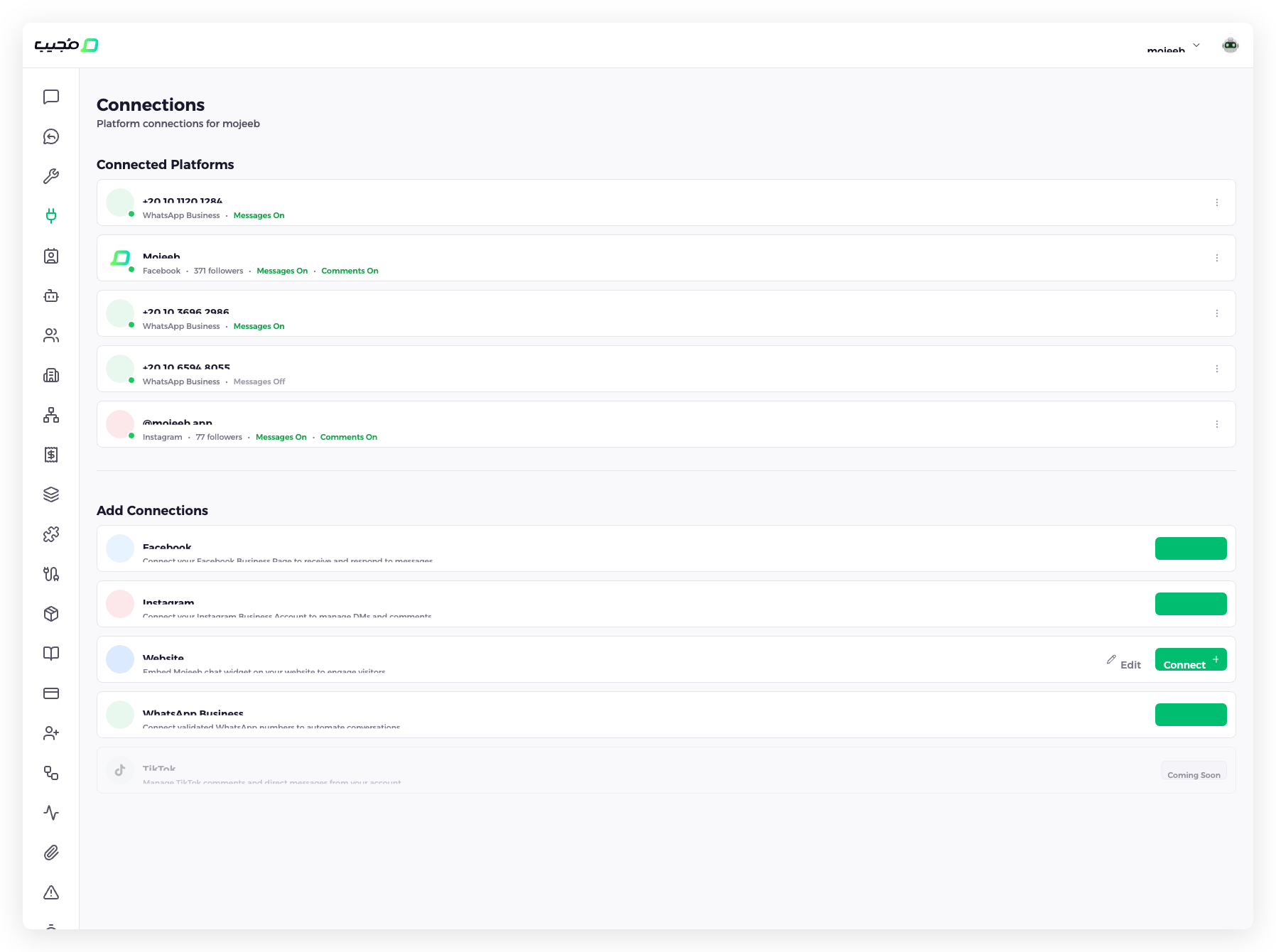
- Go to Connect in the sidebar, pick the agent at the top of the dashboard, and under Add Connections click Connect next to WhatsApp Business.
- Meta's signup window opens. Log in to Facebook, choose or create the business portfolio and the WhatsApp Business Account, add or choose the phone number, and verify it with the code Meta sends by SMS or call.
- Back in Mojeeb, choose the number under Select WhatsApp Number and click Connect WhatsApp. The number appears under Connected Platforms as WhatsApp Business with Messages On, and Connected once the health check passes; its verified name is shown on the WhatsApp page.
Each connection serves one agent. If the number is already connected to another agent or workspace, Mojeeb says Already connected to another agent and offers to move it.
What if the number stays silent after connecting?
Meta only delivers messages for a number whose verification is complete. If you closed Meta's window before entering the code, the connection looks healthy in Mojeeb but no message arrives. Finish the verification in WhatsApp Manager, under Meta Business Suite, for that phone number; messages then start flowing. Reconnecting in Mojeeb does not replace the code.
What can the agent do on WhatsApp?
| Feature | Description |
|---|---|
| Replies | The agent answers every incoming message from its instructions and knowledge |
| Media | Customers can send photos, voice notes, videos and documents; the agent and your team can send them back, and the agent sends attachments such as a menu |
| Templates | Approved messages for customers outside the 24-hour window; see WhatsApp Templates |
| Broadcasts | One template to a list of numbers; see WhatsApp Broadcasts |
| Leads | The agent saves interested customers to the Clients page; see Capture Lead |
| Follow-ups | Reminders to customers who stop replying, skipped on WhatsApp once 24 hours have passed since the customer's last message; see Follow-ups |
| Human takeover | Your team replies from the Chats page and the agent pauses; see AI Conversations |
What is the 24-hour messaging window?
A WhatsApp rule: after a customer's message, a business can reply freely for 24 hours. Mojeeb shows the time left under the composer during the last four hours, as WhatsApp window: 2h 30m remaining. When it expires, the composer is replaced by 24-hour messaging window expired. Send a template to re-engage. and a Send Template button.
The window opens again when the customer writes, including a reply to your template. The agent itself is not affected, because it only answers customer messages, which reopen the window; scheduled follow-ups, though, are skipped on WhatsApp once 24 hours have passed. Meta charges for conversations by category; Mojeeb counts the agent's replies as ordinary messages.
How do I manage a connection?
Each number is a card under Connected Platforms on the Connect page, titled with the phone number, showing WhatsApp Business, Messages On or Messages Off, and a status that reads Checking… then Connected. A number that is also used in the WhatsApp Business App shows a Coexistence badge: messages sent from the app appear in Mojeeb as well. The card's three-dot menu (⋮) holds:
- Messages — Switch off to stop the agent replying on this number; messages still arrive on the Chats page for your team
- Manage Templates — Opens the WhatsApp page; pick the number there if the agent has several
- Check status — Asks Meta whether the connection still works; a broken one shows a red Reconnect badge in its status line, and Couldn't verify when Meta could not be reached
- Disconnect — Stops Mojeeb handling the number; messages sent while disconnected are not stored
- Reconnect — In the menu of a disconnected card, or as the red badge on a card whose check failed; it runs Meta's signup again and restores the same connection, so conversation history is kept
Why are messages not delivered?
The reason is shown on the failed message in the chat, and the usual fixes are on Meta's side.
| Reason shown | What to do |
|---|---|
| The WhatsApp Business Account has no working billing | Set the currency and a payment method in Meta's Billing Hub for the WhatsApp account |
| More than 24 hours passed since the customer's last message | Send a template instead |
| This number can't receive WhatsApp messages | The number is not on WhatsApp |
| WhatsApp couldn't process this media file | Delete the attachment and upload it again; new uploads are converted to a format WhatsApp accepts |
| Meta held this marketing message back | The customer reached the marketing cap; try later or use a Utility template |
See AI Conversations for the full list of reasons.
Common questions
Do I need a WhatsApp Business account?
You need a Meta business portfolio; Meta's signup window creates the WhatsApp Business Account for you if there is none. A number used in the personal WhatsApp app must be moved during signup, or kept in the WhatsApp Business App alongside Mojeeb, which the card shows as Coexistence.
Can I connect several numbers?
Yes. Each number is its own connection on the same agent; connect them one at a time. Templates belong to the WhatsApp Business Account, so numbers on the same account share them.
Is there a message limit?
Meta allows each number 50 or 250 business-initiated conversations per day for a new or unverified business, then 1,000, 10,000, 100,000 or unlimited as quality stays high; replies to customers are unlimited. Meta bills business-initiated conversations to your WhatsApp Business Account. Mojeeb counts the agent's replies against your plan's monthly messages; broadcasts are not counted.
What happens if a template is rejected?
Open the template on the WhatsApp page to read Meta's reason, edit it and save; Meta reviews it again. See WhatsApp Templates.
Can I send media in a broadcast?
Yes, through a template with an image, video or document header; every recipient receives the sample file approved with the template. See WhatsApp Broadcasts.
What does Disconnect do?
It stops Mojeeb handling the number; nothing changes on Meta's side. Messages customers send while the number is disconnected are not stored. Reconnect runs Meta's signup again and restores the same connection and its history.