AI Conversations
Mojeeb automatically responds to customer messages across all connected channels using your Knowledge Base. The Chats page in your dashboard is a unified inbox where you can view all conversations, send manual replies, attach media, switch between AI and human mode, and manage conversations with filters, pins, and urgency flags.
How do AI conversations work?
When a customer sends a message through any connected channel, Mojeeb processes it automatically in seconds:
- Message received — Mojeeb receives the message from WhatsApp, Facebook Messenger, Instagram, or the website widget
- Knowledge read — The AI reads your Main Instructions and your whole knowledge base, every active entry, together with the conversation; there is no search step that could miss an entry
- Response generated — A natural, contextual response is crafted using AI
- Reply sent — The response is delivered back through the same channel
All conversations are tracked in real time. When a new message arrives or a conversation is updated, your dashboard updates automatically without refreshing.
How do I view and manage conversations?
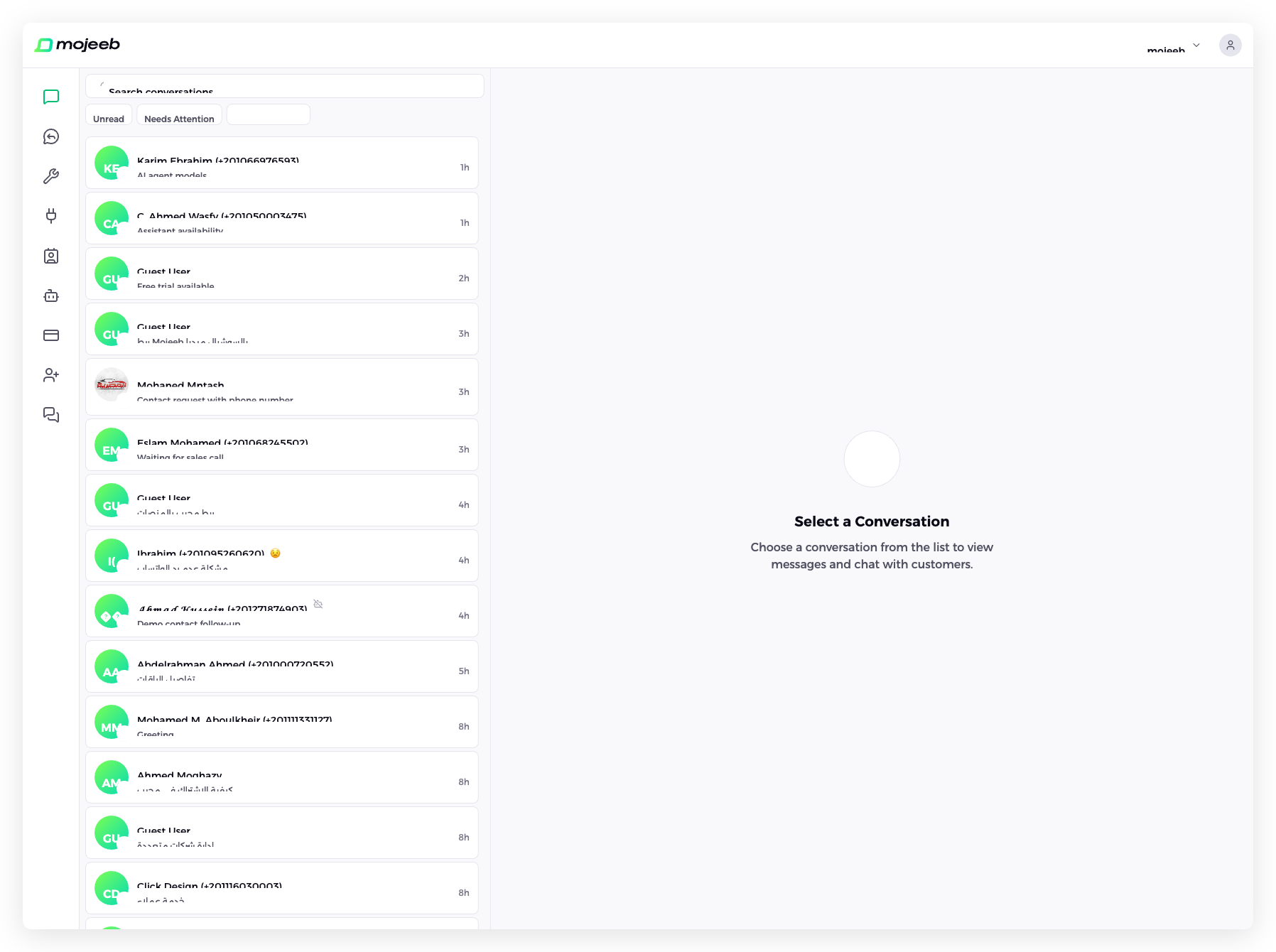
Go to Chats in the sidebar. You will see a split-panel layout:
- Left panel — Conversation list with search and filters
- Right panel — Selected conversation's chat thread and message composer
Each conversation in the list shows the customer name, last message preview, platform icon, timestamp, and status badges (pinned, AI/Human mode, sentiment, urgent flag).
The list uses infinite scroll with cursor-based pagination. Pinned conversations always appear at the top.
How do I search and filter conversations?
The top of the conversation list holds a search box and filter chips that combine with each other. Quick search matches customer names and each conversation's newest message as you type. When nothing matches, the list offers to search inside older messages, first in the last 30 days and then across all history.
- Search — A customer name or words from the latest message; results update as you type
- Unread — Only conversations with unread messages
- Needs Attention — Only conversations flagged as urgent or waiting for a human
- All Platforms — One or more channels: WhatsApp, Facebook, Instagram, Website, or Test
- Date — Conversations active in a date range
- Owner — Conversations assigned to a team member, or to you
How do I search inside messages?
Type at least 3 characters; when the quick search finds no conversation, Search inside messages appears under the list. Mojeeb first searches messages from the last 30 days, which takes a few seconds, and lists the conversations that contain the words. If nothing matches, Search all history searches every message the agent ever exchanged, which can take up to 30 seconds. Very common words return only the most recent matches, so refine the search. Searches are rate-limited; wait a moment if you see a notice.
What actions can I take on a conversation?
Right-click a conversation, or long-press it on a phone, to open its menu. The same actions sit in the three-dot menu of an open chat. They never send anything to the customer; they organize your team's view and switch the AI on or off for that conversation.
| Action | Description |
|---|---|
| Pin / Unpin | Keep the conversation at the top of the list |
| Mark as Read / Mark as Unread | Track which conversations still need a look |
| Enable AI / Disable AI | Let the agent answer this conversation, or leave it to your team |
| Mark as Urgent / Mark as Resolved | Flag the conversation for attention, or clear every attention flag |
| Delete | Remove the conversation; the contact and its notes stay |
How does the chat interface work?
Click any conversation to open the chat in the right panel. The header shows the customer's avatar with a channel badge, their name, and a row of chips: Add owner to assign the conversation to a team member, Add lead to save the customer as a lead, which becomes View lead once one exists and opens it beside the chat, and chips for the agent's tools. A link icon opens the customer on Instagram, or runs a people search by name on Facebook, which can show the wrong person.
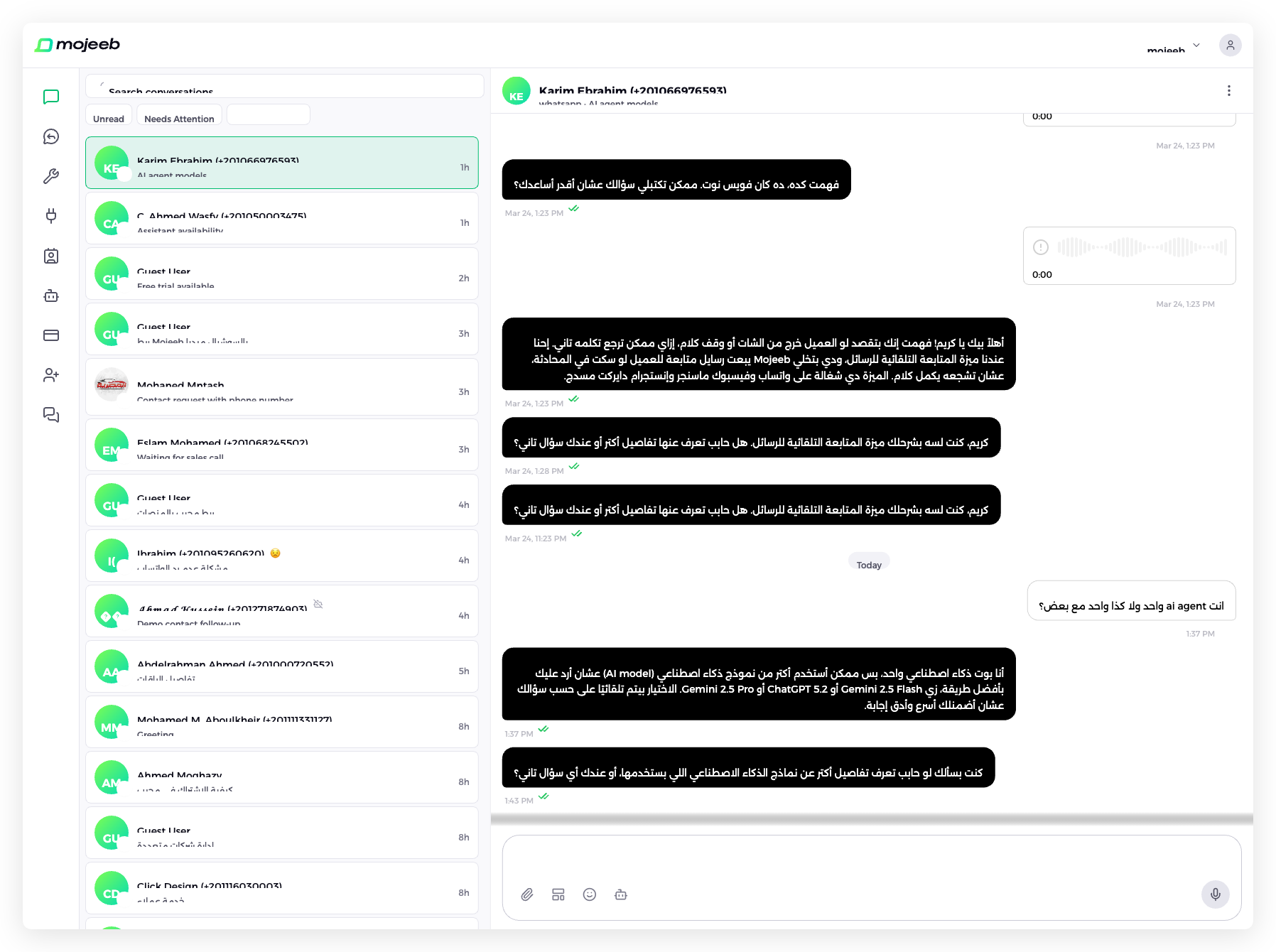
Messages are displayed in a threaded view:
- Customer messages — White bubbles, aligned to the right
- AI agent messages — Dark bubbles, aligned to the left
- Human agent messages — Also dark bubbles with the agent's identifier
- Date separators — "Today", "Yesterday", or the specific date
Each message shows a timestamp and a delivery status with checkmark icons: Sent, Delivered, Read, or Failed. Hover a message to copy it; a failed message offers Retry sending message.
Can I send messages manually?
Yes. Type in the composer at the bottom and press send; your message goes out on the customer's channel and appears in the thread with your name. Sending a reply yourself pauses the AI for the agent's handoff window, 15 minutes by default, so the two of you do not answer at once. The composer handles:
- Text up to 5,000 characters; markdown you type, such as
*bold*, is rendered on channels that support it - Files by the attachment button or by dragging them onto the chat, with the limits listed below
- Emoji from the picker, and voice messages from the microphone, sent when you stop recording
- Saved messages and Template messages, described next
How do saved messages work?
Saved messages are quick replies your team reuses, kept per agent and shared by everyone who works on it. Click Saved messages in the composer to open the list, then Create new shortcut. Each saved message has three parts:
- Shortcut — A short name such as
shipping_time - Message — The text to insert
- Media, optional — Up to a set of images, or one video, audio file or document, sent along with the text
To use one, start the composer with / followed by the shortcut and pick it from the suggestions; the text drops into the message for you to edit before sending.
What media types are supported?
Click the attachment icon (paperclip) in the composer to send media files:
| Type | Max Size | Supported Formats |
|---|---|---|
| Images | 10 MB | JPG, PNG (up to 10 images per message) |
| Audio | 5 MB | MP3, WAV, M4A, OGG, WebM, AAC, FLAC (up to 5 files) |
| Documents | 20 MB | PDF, DOCX, XLSX, XLS, TXT, CSV |
| Video | 16 MB | MP4, 3GP, WebM, MOV |
Files upload with a progress bar. Images show thumbnail previews, audio files display a waveform player, and documents show an icon with download link.
You can also record voice messages directly using the microphone button in the composer.
How do I switch between AI and human mode?
Each conversation is either answered by the AI or left to your team. The composer shows the current state, AI Agent Response Enabled or AI Agent Response Disabled, and clicking it switches. The conversation menu offers the same as Enable AI and Disable AI. When the AI is enabled it answers every new customer message; when disabled, only your team's replies go out and the conversation waits for a human.
What happens to the AI when I reply myself?
Mojeeb pauses the AI the moment a team member sends a message in the conversation, so the agent does not talk over you, and every further reply of yours extends the pause. The pause lasts for the agent's AI Handoff Window, 15 minutes by default; afterwards the AI resumes with the next customer message. To hand the chat back sooner, switch the AI on in the composer and confirm Enable AI? with Yes, enable.
The window is set per agent in its settings under AI Handoff Window: an AI handoff switch, and a Pause duration of 5 minutes, 15 minutes, 1 hour, 24 hours, or Custom between 1 minute and 24 hours. With the switch off, the AI keeps answering even right after a human reply. When the window ends and follow-ups are enabled for that channel, the agent may send a follow-up itself if the customer has gone quiet.
Why does a message show "Not delivered"?
The channel refused the message or could not deliver it, and Mojeeb shows the reason on the message itself so you know whether to act or wait. Most reasons come from Meta's rules for WhatsApp, Messenger and Instagram: the 24-hour reply window, page restrictions, media formats and message length. The table lists the common ones.
| Reason shown | What it means | What to do |
|---|---|---|
| More than 24 hours passed since the customer's last message | Meta's reply window closed | On WhatsApp send a template; otherwise wait for the customer to write |
| This channel has no working connection | The channel was disconnected or removed | Reconnect it on the Connect page |
| The connection to this channel stopped working | A password change or a removed app on the Meta side | Reconnect the page on the Connect page |
| Meta has temporarily restricted this page | The page itself is blocked from messaging, for every app | Check the page under Account Quality in Meta Business Suite and request a review there |
| Meta is temporarily limiting messages from this page | A rate limit, usually minutes | Retry later |
| Meta wouldn't deliver this | The customer only commented and never replied, their privacy settings block page messages, or they blocked the page | Wait for the customer to message first |
| This number can't receive WhatsApp messages | The number is not on WhatsApp or has not accepted its terms | Reach the customer another way |
| WhatsApp couldn't process this media file | Unsupported media, usually a video format | Delete the attachment and send a supported file |
| Meta rejected this reply for being too long | Instagram allows 1,000 characters per message, Facebook 2,000 | Split the message |
| Another app currently controls this conversation | A different app connected to the page holds the thread | Make Mojeeb the primary app in the page's messaging settings |
| The WhatsApp Business Account has no working billing | No currency or payment method on the WhatsApp account | Fix billing in Meta Business Manager, then resend |
| Meta held this marketing message back | The per-person marketing limit | Clears on its own; a non-marketing template goes through |
| Meta blocked this content | Usually a link the account is restricted from sending | Remove the link; the restriction is on the account |
| Meta accepted this message but didn't confirm it | It may have reached the customer | Ask the customer if in doubt |
Retry sending message on the message sends it again once the cause is fixed.
What channels are supported?
AI conversations work across all Mojeeb channels:
- WhatsApp — Via WhatsApp Business API. Supports text, images, audio, documents, video, and WhatsApp message templates.
- Facebook Messenger — Through your Facebook Business page
- Instagram — Direct messages on your Instagram business account
- Website Widget — Chat embedded on your website
Each conversation shows a platform icon so you can quickly identify the source channel.
How does WhatsApp template messaging work?
For WhatsApp conversations the composer shows a Template button. Templates are the only way to write first or to answer after the 24-hour window has closed, because Meta requires pre-approved wording for those messages. Click Template, pick an approved template, fill its variables, and send. Templates are created and managed on the WhatsApp page.
How does sentiment analysis work?
Mojeeb's AI scores customer sentiment on every reply using a 1–5 scale. Scores 1, 2 and 5 appear as an emoji next to the conversation's name, and 3 and 4 show none, so you can spot which customers need urgent attention and which ones are delighted.
The five levels are:
- 1 — Very unhappy 😡 (customer is angry or extremely frustrated)
- 2 — Unhappy 😕 (customer shows clear dissatisfaction)
- 3 — Neutral (standard interaction, no strong signal)
- 4 — Happy (customer is satisfied)
- 5 — Very happy 💚 (customer is delighted)
Conversations scoring 1 or 2 are flagged as "angry" and surface in the dashboard's Angry tile so you can intervene before they escalate.
What does "Needs Attention" mean?
Conversations are flagged as needing attention when:
- Urgent — A team member manually marked the conversation as urgent
- Requires human attention — The AI determined the question needs a human response
- AI uncertain — The AI could not find a confident answer in the knowledge base
Use the "Needs Attention" filter to focus on these conversations. Click "Mark as Resolved" in the context menu to clear all attention flags.
Who owns a conversation?
A conversation can be assigned to one team member, so everyone knows who is handling it. Click Add owner in the chat header and pick a teammate, or yourself; the list then shows Assigned to that name on the conversation, and the Owner filter narrows the list to one person's conversations. A lead captured from the conversation inherits the same owner, and changing the owner on the lead updates the conversation too.
How do I keep notes on a customer from the chat?
Notes live on the contact, so they follow the person across conversations and leads. From the chat header click View lead to open the lead beside the conversation with its note timeline, or open the customer on the Contacts page and click Notes. Notes are internal; the customer never sees them. A status change on the lead is recorded in the same timeline automatically.
Common questions
How long does the AI stay paused after I reply?
For the agent's AI Handoff Window, 15 minutes by default, counted from your last message and extended by each further reply. Set it per agent under AI Handoff Window, or turn the AI handoff switch off so the AI keeps answering alongside you. Switching the AI on in the composer ends the pause immediately.
Can I search messages from months ago?
Yes. Search inside messages covers the last 30 days first; Search all history then covers every message, in up to 30 seconds. Searches need at least 3 characters.
Can multiple team members view the same conversation?
Yes. All team members with access to the agent can view and respond to the same conversations. Updates appear in real time for everyone.
Are conversations stored permanently?
Conversations remain in your dashboard until deleted. Deleted conversations are soft-deleted (marked as deleted) and no longer appear in the list.
Can I see which messages were sent by AI vs. humans?
Yes. Each message shows the sender role — AI agent messages and human agent messages are distinguished in the chat thread.
Do conversations sync in real time?
Yes. The conversation list and chat thread update in real time via Supabase subscriptions. New messages, status changes, and conversation updates appear instantly without refreshing.
What happens when the AI cannot answer a question?
When the AI is uncertain, it flags the conversation with "requires human attention" and may set the "am not sure how to answer" flag. These conversations appear under the "Needs Attention" filter so your team can respond manually.