Knowledge Base
The knowledge base is the set of facts your agent answers from: prices, working hours, branches, policies, product details, FAQs. You add them on the Agent Knowledge page by typing entries or by uploading PDF, Word and text files, which Mojeeb reads and splits into entries. Each agent has its own knowledge base, read in full on every reply.
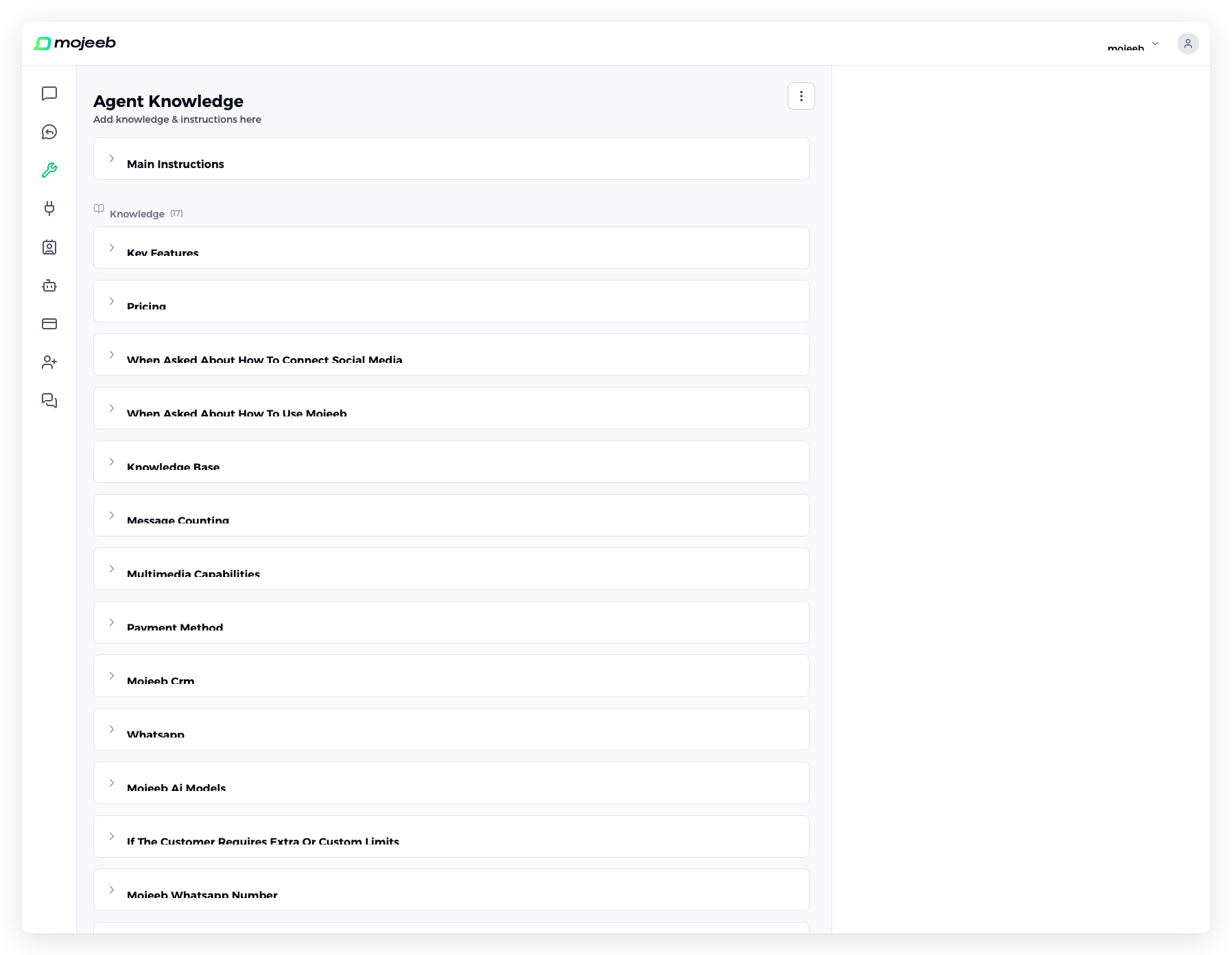
How does the knowledge base work?
Every knowledge entry has a title and a body. When a customer writes, Mojeeb hands the agent your Main Instructions, all active knowledge entries, and the conversation, and the agent composes its answer from them. There is no search step that might miss an entry; the agent reads everything, which is why the size of the knowledge base affects the cost of each reply.
Two ways to add knowledge:
- Type it — A title and text, the quickest way to add prices, hours or a policy. Plain text works best.
- Upload a document — A PDF, Word (.docx) or text (.txt) file. Mojeeb extracts the text and uses AI to split it into well-titled entries, so a 30-page catalog becomes dozens of focused entries.
How do I add knowledge?
Open Agent Knowledge, pick the agent at the top of the dashboard, and click Add. In the Add Knowledge window type a Title and the content under What should your agent know?, or drop a file on Attach files (optional). For a PDF or Word file, answer What should your agent do with this file? with Read it to answer questions. Click Add. Typed entries are live immediately; a document shows its progress, from Queued for processing to Processing complete, until its entries appear.
The text box shows a gray example, such as Prices with three price lines or Working hours, to show the kind of short facts that work best; type your own over it.
Which files can I upload?
| Format | Extension | Notes |
|---|---|---|
.pdf | Text-based PDFs; scanned images without selectable text cannot be read | |
| Word | .docx | Legacy .doc is refused; save as .docx first |
| Plain text | .txt | UTF-8 |
Limits: 20 MB for a PDF or Word file, 10 MB for a text file, and 120,000 characters of text per document. A longer document is refused with its measured length rather than cut short, so split it and upload the parts. Excel and CSV files are not accepted; paste the rows as text or export the sheet to PDF.
How does document processing work?
- Validating — Type and size are checked.
- Parsing — The text is extracted, page by page for PDF and paragraph by paragraph for Word.
- AI processing — The text is sent to Mojeeb's AI, which splits it into entries with clear titles and bodies.
- Done — The entries appear in the list, each editable like a typed one.
Processing takes from a few seconds to a couple of minutes, with the status updating live. If it fails, a notification shows the reason for ten seconds, for example a PDF whose pages are images; fix the file and upload it again.
How do I edit or delete an entry?
Click Edit on the entry's row to change its title or content, including entries that came from a document: fix a garbled passage, a mis-split section or an old price directly instead of re-uploading. Delete removes the entry after a confirmation. Changes reach the agent on the next customer message.
How does the AI use my knowledge base?
It reads all of it, every time, together with your Main Instructions. A question the entries answer gets a natural reply built from them; one they do not cover is answered from the instructions' rules, such as "say you will check and hand over", and can be flagged for human attention. The agent never searches the web. Well-titled, short entries are used most reliably.
How much knowledge can I add?
As much as you need, with one cost rule. Mojeeb reads the whole knowledge base for each reply, so every 40,000 words of active knowledge, currently the threshold, makes each reply count as one more message in your quota: up to 40,000 words a reply is one message, up to 80,000 two, and so on. From about 32,000 words a notice on Agent Knowledge and on My Subscription shows the count and weight. Keep entries focused.
Can I export the knowledge base?
Yes. Click Extract on the Agent Knowledge page and choose JSON for a complete backup, PDF for a readable document, or Excel (.xlsx) with separate sheets for instructions, knowledge and attachments. See Agent Knowledge.
Can I test my knowledge base?
Yes. The test chat beside the list answers from the current knowledge and instructions, exactly as a customer would be answered. After adding or editing entries, ask the questions customers ask most and check the facts come back right. Test chats appear on the Chats page under the Test platform.
What makes a knowledge base effective?
- One topic per entry with a title that says what it holds: "Delivery fees by city", not "Info".
- Write answers, not descriptions: the exact price, the exact hours, the exact policy.
- Question-and-answer pairs work well for FAQs.
- Update in place when something changes; delete entries for discontinued products.
- Mind the words: a focused knowledge base answers better and keeps each reply at one message.
- Keep secrets out: never store passwords, margins, staff numbers or internal notes; anything the agent reads can be repeated to any customer.
Common questions
Is there a limit on the number of entries?
No. The only limit is the weight rule: every 40,000 words of active knowledge makes each reply count as one more message. The number of entries is free.
Can I upload several documents at once?
Yes, one after another. Each is processed on its own and becomes several entries.
What happens if my document is too large?
A PDF or Word file over 20 MB, or a text file over 10 MB, is refused at upload. A document whose text exceeds 120,000 characters is refused after parsing with its measured length, never truncated. Split it into parts and upload them separately.
Can I edit entries created from documents?
Yes. They are ordinary entries once extracted; edit them from the row like any typed entry.
Does deleting an entry affect past conversations?
No. Past replies are not changed; only future replies stop using the entry.
What if my PDF contains only images?
It cannot be read; the failure notification says the PDF has no selectable text because its pages are images. Run it through an OCR tool to produce a text-based PDF, or type the content.
Related
- Agent Knowledge — the page where knowledge lives
- Main Instructions — the rules the facts are used under
- Attachments — files the agent sends rather than reads