Team Management
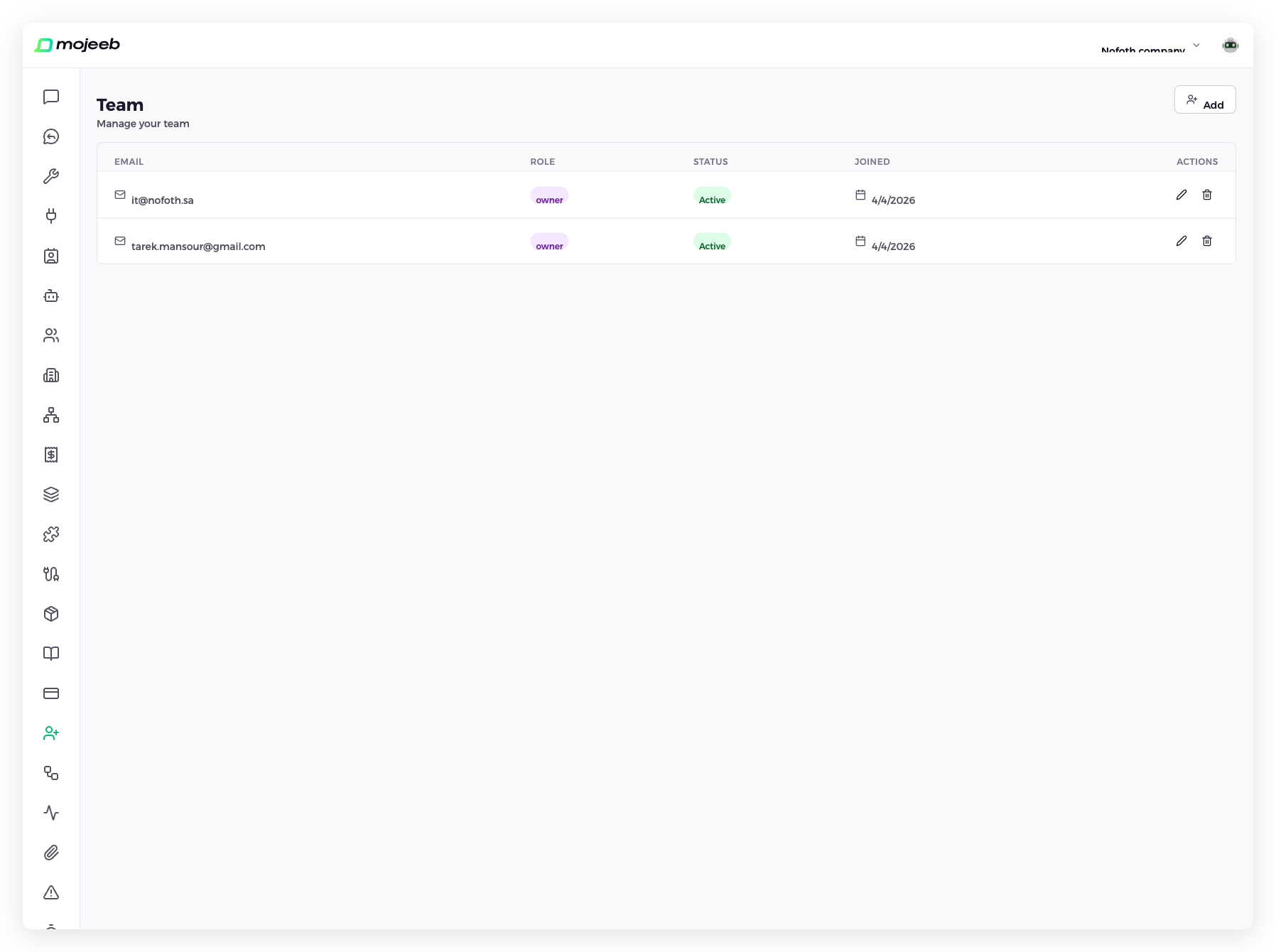
The Team page is where you bring colleagues into your company: invite them by email as Owner, Admin or Member, decide which agents they can open, and later change or remove their access. There is no limit on team members, and each person belongs to one company.
What roles are available?
Three roles, set when you invite and changeable later. An Admin's reach depends on the agents they can open: with All agents they manage the whole company except the team's removal and ownership; limited to specific agents, they manage only those.
| Role | What they can do |
|---|---|
| Owner | Everything: the team, billing, plan, API keys and every agent. Only the Owner removes members or gives someone the Owner role |
| Admin | Manages the agents they can open: knowledge, tools, channels, clients, exports. With All agents, also invites and edits the team, changes the plan and card, and buys add-ons |
| Member | Handles conversations, clients and contacts in their agents and can read their knowledge; cannot edit instructions or knowledge, no team or billing, no exports |
Can I limit a member to specific agents?
Yes. When your company has more than one agent, the invitation and the edit window show an Agents field for Admins and Members: All agents, meaning current and future ones, or a list to tick, with at least one chosen. Owners always see every agent. A limited person sees only those agents in the agent selector and in every page, from Chats to Agent Knowledge, and a limited Admin cannot invite teammates or touch billing. With more than one agent, the Agents column of the team table shows each person's access.
How do I invite team members?
- Go to Team in the sidebar and click Add.
- In Invite Team Member, enter the Email Address, pick the Role, and choose the Agents when asked. Only the Owner can offer the Owner role.
- Click Send Invitation. The person receives an email with a link, and Invitation Sent Successfully also lets you Copy Link or send it by WhatsApp.
A link is valid for 7 days. Inviting the same email again replaces the earlier link, and someone already on the team is refused with User already a member.
How does my teammate accept?
They open the link, sign up or sign in with the invited email address, and the Pending Invitation window appears with the company, the inviter, the role and the expiry; Accept Invitation joins them, and Successfully joined confirms it. A different email address is refused, and an expired link needs a resend. Accepting moves the person out of any company they belonged to; the window does not warn about this, so check before clicking Accept Invitation. A Switch Organization? prompt appears only when a conversation is open.
How do I manage team members?
The members table shows Name, with the email under it for managers, Role, Agents, Status, Joined and Actions: a pen to edit and a trash icon to remove. Below it, Pending Invitations lists each sent invitation with Resend invitation, which issues a fresh 7-day link and email, and Cancel invitation. Members see the list without emails or actions.
How do I change a member's access?
Click the pen to open Edit member, change the Role or the Agents, and click Save; the change applies at once. Giving someone the Owner role shows a warning, because an Owner can remove you. Nobody can edit their own access, and an Owner's access can be changed only by the Owner.
How do I remove a team member?
Only the Owner can remove a member. Click the trash icon and, in Remove Member, click Remove. The person loses access immediately; their past conversations, notes and actions stay.
Common questions
How many team members can I add?
As many as you need. Plans limit messages and agents, not team members.
Can a person be in more than one company?
No. Each person belongs to one company. Accepting an invitation to another company moves them there, so a colleague who works with two businesses needs two accounts.
What happens when I remove a team member?
They lose access the moment you confirm. Conversations, notes and clients they worked on remain in the company.
Can I change my own role?
No. Nobody edits their own access; ask the Owner.
How long do invitations remain valid?
7 days. Resend invitation on the pending table sends a fresh link with a new 7-day window.
Can an Admin manage billing?
Yes, when their access is All agents. An Admin limited to specific agents cannot open billing or invite anyone.