Create Your First Agent
An agent is one AI assistant with its own instructions, knowledge, channels, clients and settings. Your first one is created by the sign-up wizard; more can be added for different brands, branches or purposes, each working on its own around the clock. The number of agents depends on your plan.
What is a Mojeeb agent?
An AI assistant that talks to your customers on your behalf. Each agent can:
- Answer questions from its Main Instructions and knowledge
- Send files such as a menu or a catalog as attachments
- Save interested customers to the Clients page
- Work on every channel: the website widget, WhatsApp, Facebook Messenger and Instagram, in Arabic and English
- Reply to comments on your Facebook and Instagram posts
- Send follow-ups to customers who stop replying, and use tools such as Google Calendar bookings
How do I create an agent?
Click the agent name at the top of the dashboard to open Select Agent, then click Create New Agent at the bottom; the Owner, and Admins with access to All agents, see this button. The same three-step wizard as at sign-up opens:
- Name Your Agent — Your business or brand name, 2 to 255 characters.
- What will your agent do? — Tick one or more purposes, such as Customer Support or Sales Assistant; they become the first line of its Main Instructions.
- Congratulations! — Click Try your agent to open its Agent Knowledge page.
The new agent is selected right away, with its own empty knowledge and no channels yet.
How do I switch between agents?
Click the agent name at the top of the dashboard. Select Agent lists your agents with a search box; click one and every page, from Chats to Clients to Agent Knowledge, shows that agent's data. Team members limited to specific agents see only those.
How do I customize my agent?
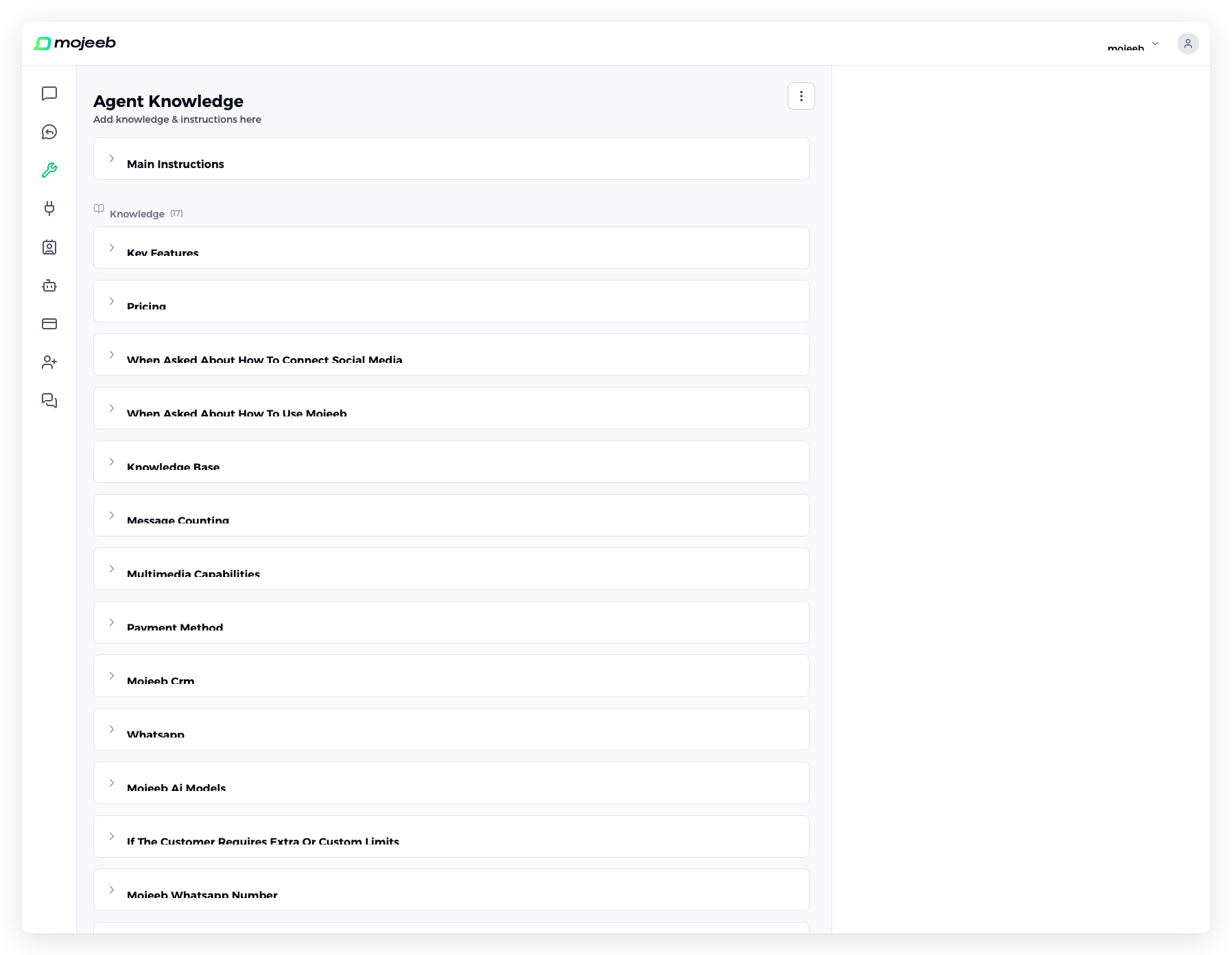
Go to Agent Knowledge in the sidebar. It is one list with everything the agent reads before answering: the Main Instructions that set its personality and rules, the knowledge entries it answers from, and the attachments it can send, with a test chat beside it. Click Edit on Main Instructions to write the rules, and Add to type knowledge or upload a PDF, Word or text file.
- Main Instructions — how to write the rules, with two full examples
- Knowledge Base — entries, documents, limits
- Attachments — files the agent sends
- Agent Knowledge — the page itself, test chat, export and settings
Can I test my agent before connecting it?
Yes. The test chat beside the Agent Knowledge list, or the Test button on a phone, talks to the agent exactly as a customer would, with its current instructions, knowledge and attachments. Type the questions customers ask most, check the answers, fix an entry or a rule, and ask again. New conversation starts over. Test chats appear on the Chats page under the Test platform and reach no customer.
What settings does an agent have?
Open the three-dot menu (⋮) on Agent Knowledge and choose Agent settings. Four sections, each with its own save button:
| Section | What it holds |
|---|---|
| Name | The agent's name in the dashboard and the selector |
| Timezone | The clock the agent answers from, for opening hours, "today" and bookings; Egypt until you pick your city |
| Follow-Up Settings | Reminders to customers who stop replying: on for a new agent with one reminder after 5 minutes on WhatsApp, Facebook and Instagram; see Follow-ups |
| AI Handoff Window | How long the agent stays quiet after a team member replies: on, 15 minutes by default; see AI Conversations |
The agent's language is not a setting: state it in the Main Instructions. The AI model is managed by Mojeeb.
What's next?
- Train your agent with instructions and knowledge
- Embed the widget on your website
- Connect WhatsApp, Facebook or Instagram
- Give it tools such as calendar bookings or a sheet
- Watch conversations and clients come in
Common questions
Can I have multiple agents?
Yes, up to your plan's agent limit. Each agent has its own knowledge, channels, conversations, clients and settings, so a sales agent and a support agent never mix.
Can I delete an agent?
Not from the dashboard. Contact support to remove an agent; its conversations and clients are kept.
Can two agents share the same knowledge?
No. Knowledge belongs to one agent. Export it as JSON from one agent's Agent Knowledge page as a starting point for another.
How do I change my agent's AI model?
Mojeeb manages the model. Contact support if you have a specific need.