Agent Tools
Tools give your AI agent abilities beyond answering from the knowledge base. With a tool, the agent can save a lead, book appointments in Google Calendar, read or add rows in a Google Sheet, or call your own system through a Custom API — all while chatting with the customer. A Shopify tool is coming soon and cannot be connected yet.
What is a tool?
A tool is one ability you give to one agent. Each tool has a short instruction that tells the agent when to use it. During a conversation the agent decides on its own whether a tool applies, uses it, and then answers the customer in natural language. The customer never sees the tool — only the answer.
For example, with an order-status tool, a customer writes "where is my order 1042?", the agent calls your system with order number 1042, reads the reply, and answers "Your order is with the courier and should arrive tomorrow."
Which tools are available?
The Tools page lists every tool Mojeeb offers. Some are built in, some connect to a third-party service, and one connects to any system you own. Each tool is added to one agent at a time, so two agents can have different tools. The table shows what each one lets the agent do and which plan includes it.
| Tool | What the agent can do | Availability |
|---|---|---|
| Capture lead | Save the customer's name, phone, and details as a lead — see Capture Lead | Built in, every plan |
| Google Calendar | Check availability, book, reschedule, and cancel appointments — see Google Calendar | Every plan |
| Google Sheets | Add, update, and read rows in a spreadsheet — see Google Sheets | Every plan |
| Custom API | Call your own website or system — order status, stock, bookings, loyalty points | Paid plans |
| Shopify | Search your product catalog and answer product questions | Coming Soon; not available to connect yet |
| Bosta, Salla, WooCommerce, Odoo, Zoho CRM, Notion | Shipping, e-commerce, ERP, CRM, and workspace connectors | Coming Soon |
How do I open the Tools page?
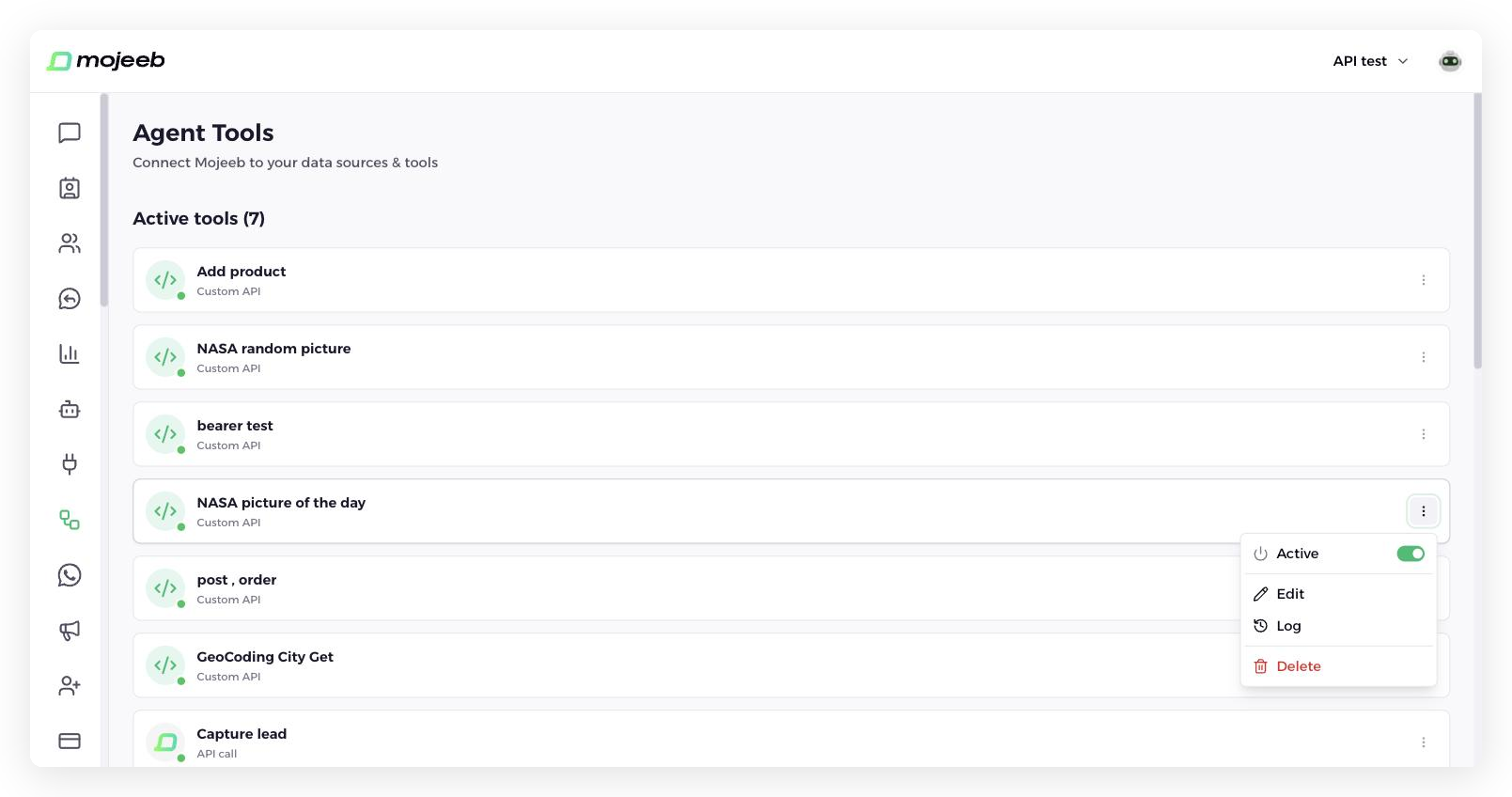
Go to Tools in the sidebar. Tools belong to one agent, so first pick the agent at the top of the dashboard; the page is empty until you do. Everything on the page applies to that agent only. It has two sections:
- Active tools — Tools this agent already has. The three-dot menu (⋮) on each card holds the Active switch, Edit, Delete, and for Custom API tools a Log
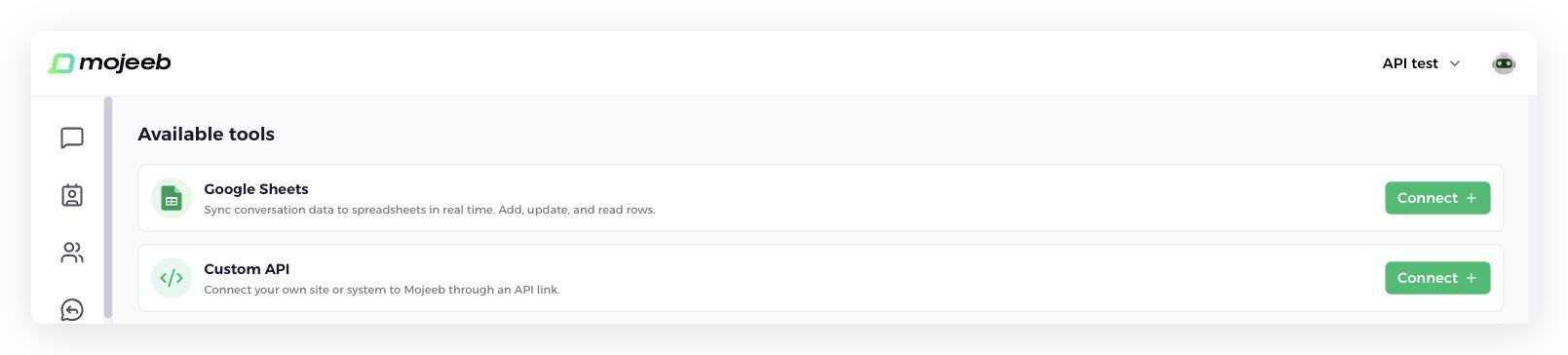
- Available tools — Everything you can add, with a Connect button on each card
Tools marked Coming Soon cannot be added yet. A tool that needs a higher plan shows a Paid badge and an Upgrade button instead of Connect; click it to see the plan options.
How does the agent decide when to use a tool?
Every tool carries an instruction written by you, such as "When the customer asks about their order status and gives the order number, fetch the order details." The agent reads these instructions together with your knowledge base and chooses the tool that fits the customer's message. Clear, specific instructions produce reliable tool use; vague ones make the agent guess.
Can I turn a tool off without deleting it?
Yes. Open the three-dot menu (⋮) on the card under Active tools and use the Active switch. A tool that is off keeps its settings but the agent stops using it immediately. Turn it back on at any time. Deleting a tool removes it from the agent; for connector tools, the connection to the service stays, so other tools using it keep working.
Where can I see what a tool did?
Custom API tools keep a log: open the three-dot menu (⋮) on the tool card and choose Log. It shows every time the agent used the tool, whether it succeeded, how long it took, the exact request and reply, and a link to the conversation it happened in. Other tools do not keep a per-tool log; their results appear in the conversation itself. See Custom API for a walkthrough.
Related
- Google Calendar — let the agent book appointments
- Google Sheets — save conversation data to a spreadsheet
- Capture Lead — the built-in lead tool
- Custom API — connect your own system
- Lead Management — where captured leads go
- Plans & Pricing — which plan includes which tools