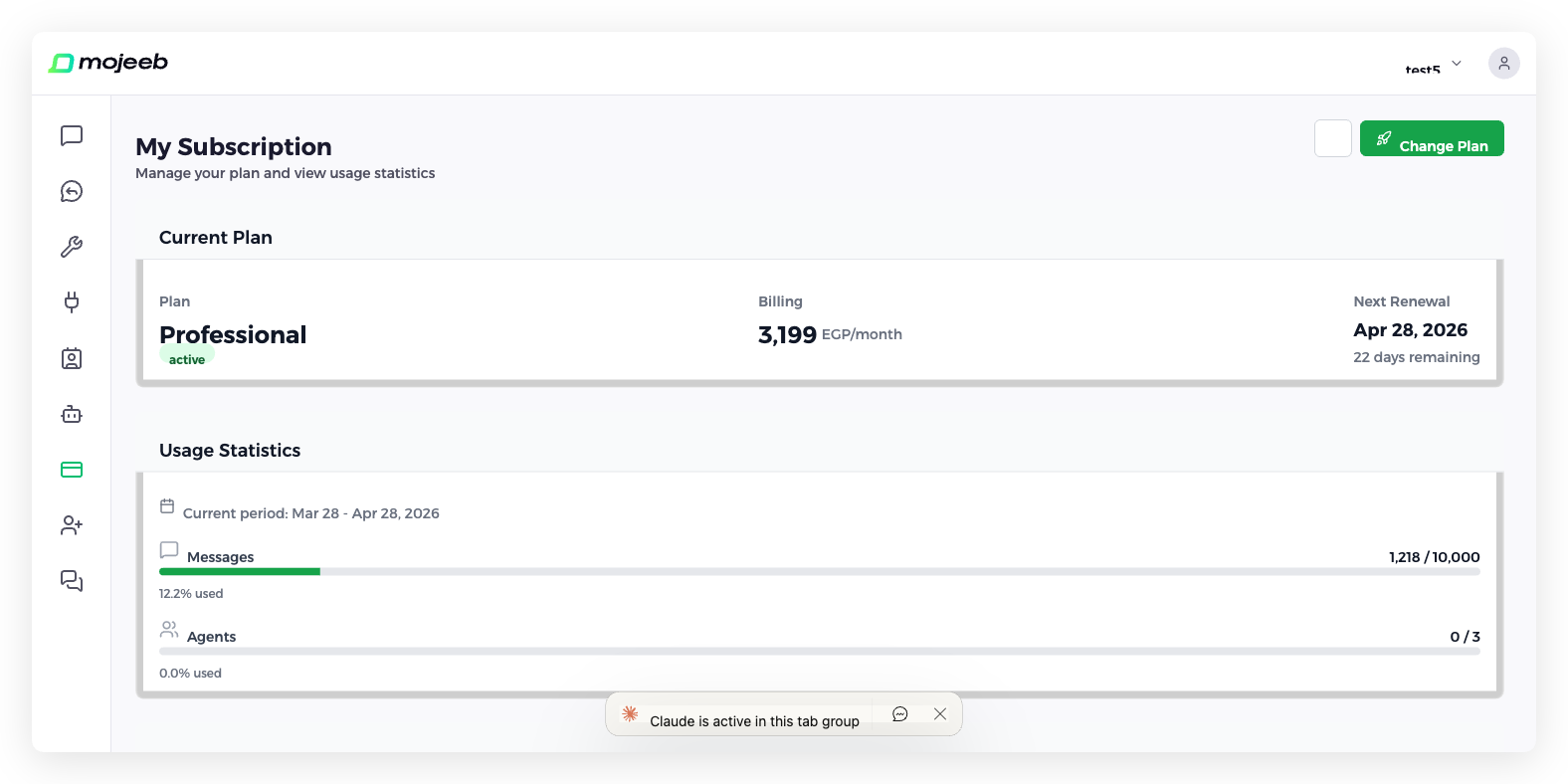
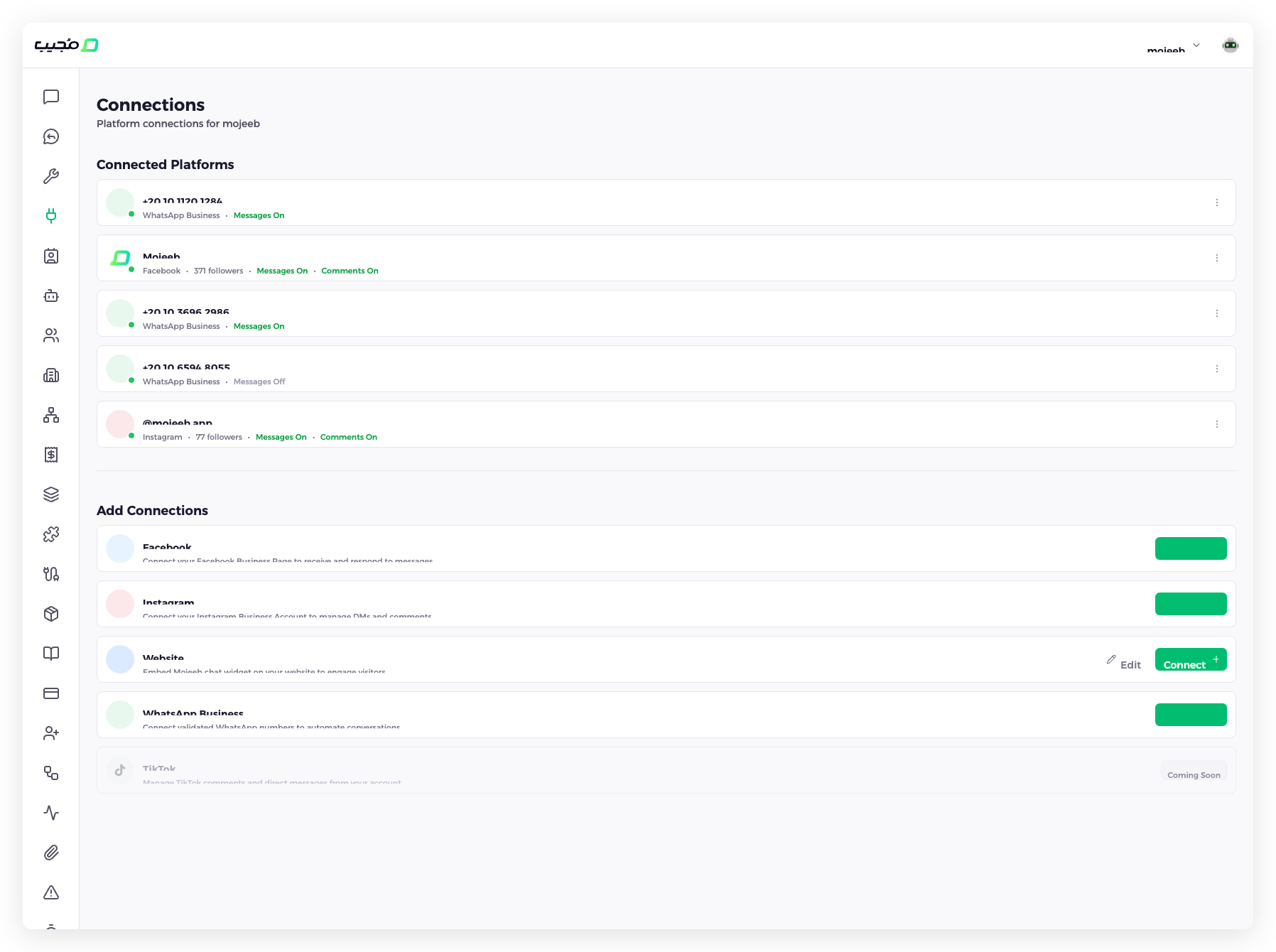
# Mojeeb Documentation > Official documentation for Mojeeb — an AI-powered customer engagement platform. Mojeeb lets businesses automate conversations across WhatsApp, Facebook Messenger, Instagram, and website chat using AI agents trained on their own knowledge base. It includes lead management, social comment auto-replies, follow-up automation, analytics, and team collaboration. Supports Arabic and English. Free plan available. This file contains all documentation content in a single document following the llmstxt.org standard. ## Add-Ons import Head from '@docusaurus/Head'; # Add-Ons Add-ons let you extend your Mojeeb plan with extra capacity without upgrading to a higher tier. Purchase additional message packs or agent slots directly from your [My Subscription](https://dashboard.mojeeb.app/my-subscription) page. ![Mojeeb AI agent customer support - Add-ons section](/img/screenshots/mojeeb-ai-subscription-en.png) ## What add-ons are available? Add-ons are displayed in the "Add-ons" section of your [My Subscription](https://dashboard.mojeeb.app/my-subscription) page. Available add-ons include: | Add-On | Description | |--------|-------------| | **Add 1,000 messages** | Extra 1,000 AI conversation messages per month | | **Add 5,000 messages** | Extra 5,000 AI conversation messages per month | | **Add 10,000 messages** | Extra 10,000 AI conversation messages per month | | **Add agent** | One additional AI agent slot | Pricing is shown in your subscription's currency (USD, EGP, or SAR) and follows your billing interval (monthly or annual). ## How do I purchase an add-on? 1. Go to [My Subscription](https://dashboard.mojeeb.app/my-subscription) in the sidebar 2. Scroll down to the **Add-ons** section 3. Click the **Add** button next to the add-on you want 4. Complete the purchase through Stripe checkout 5. The extra capacity is applied to your account immediately ## How are add-ons billed? Add-ons follow your subscription's billing cycle. They are charged as one-time purchases that apply to your current billing period. Add-on capacity resets with each new billing period, similar to your base plan limits. ## Can I purchase multiple add-ons? Yes. You can purchase multiple add-ons of different types, or multiple quantities of the same add-on. All purchased capacity stacks on top of your base plan. ## Common questions ### Do add-ons carry over between billing periods? No. Add-on capacity resets at the start of each billing period, just like your base plan's message allowance. ### Can I remove an add-on? Add-ons are one-time purchases for the current billing period. They expire at the end of the period and are not automatically renewed. To add capacity again, purchase a new add-on in the next period. ### What's the difference between add-ons and upgrading? Add-ons increase specific capacity limits (messages, agents) without changing your plan tier. Upgrading moves you to a higher plan with increased limits across all categories and potentially additional features. ### Which add-ons are available for my plan? Available add-ons depend on your current subscription plan. The My Subscription page only shows add-ons that are purchasable for your plan level. --- ## Manage Subscription import Head from '@docusaurus/Head'; # Manage Subscription Manage your Mojeeb subscription from the [My Subscription](https://dashboard.mojeeb.app/my-subscription) page. View your current plan, monitor usage statistics, purchase add-ons, and change your plan — all in one place. ![Mojeeb AI agent customer support - Subscription management page](/img/screenshots/mojeeb-ai-subscription-en.png) ## What does the subscription page show? The My Subscription page displays three sections: ### Current Plan - **Plan name** and status (active/inactive) - **Billing amount** and currency (e.g., 3,199 EGP/month) - **Next renewal date** and days remaining ### Usage Statistics - **Messages** — Progress bar showing messages used out of your monthly limit (e.g., 825 / 10,000) - **Agents** — Progress bar showing agents used out of your plan's agent limit (e.g., 0 / 3) - **Current billing period** dates (e.g., Mar 28 - Apr 28, 2026) ### Add-Ons Available add-ons you can purchase to extend your plan capacity without upgrading. See [Add-Ons](/docs/billing/add-ons) for details. ## How do I upgrade my plan? 1. Go to [My Subscription](https://dashboard.mojeeb.app/my-subscription) 2. Click **Change Plan** 3. Select the plan you want to upgrade to 4. Complete payment through Stripe 5. Your new plan is activated immediately ## How do I downgrade my plan? 1. Go to [My Subscription](https://dashboard.mojeeb.app/my-subscription) 2. Click **Change Plan** 3. Select a lower-tier plan 4. Confirm the change 5. The downgrade takes effect at the **end of your current billing period** If your current usage exceeds the new plan's limits (e.g., more agents than the lower plan allows), you will receive a warning before confirming the downgrade. ## What payment methods are accepted? ### Online Payments - **Credit/Debit Card** — Processed securely through Stripe (Visa, Mastercard, and other major brands) - Payment method can be updated via the Stripe Billing Portal (click the gear icon on the subscription page) ### Offline Payments - **Cash** — Available in supported regions - **Bank Transfer** — Contact support for bank transfer details ## How do I manage my payment method? Click the **gear icon** (⚙) on the My Subscription page to open the Stripe Billing Portal. From there you can: - Update your credit/debit card - View invoices and billing history - Manage your subscription settings ## Common questions ### Can I cancel my subscription? Yes. You can cancel at any time. You retain access to your plan until the end of your current billing period. ### What happens if my payment fails? Mojeeb notifies you and retries the payment. If payment continues to fail, your subscription may be paused until the payment issue is resolved. ### Can I switch between monthly and annual billing? Yes. You can change your billing interval when changing your plan. ### Are upgrades prorated? When upgrading mid-cycle, Stripe handles the prorated billing. You pay the difference for the remaining days in your current billing period. --- ## Plans & Pricing import Head from '@docusaurus/Head'; # Plans & Pricing Mojeeb offers flexible subscription plans to fit businesses of all sizes. Visit [mojeeb.app](https://mojeeb.app) for current pricing. All plans include AI-powered conversations, multi-channel support, and a built-in CRM. Higher-tier plans offer more conversations, agents, team members, and advanced features. ## What's included in every plan? All Mojeeb plans include: - **AI-powered conversations** — Automated responses across all channels using your [Knowledge Base](/docs/features/knowledge-base) - **Multi-channel support** — [Website widget](/docs/channels/website-widget), [WhatsApp](/docs/channels/whatsapp), [Facebook Messenger](/docs/channels/facebook-messenger), [Instagram](/docs/channels/instagram) - **Lead management** — [Capture and organize](/docs/features/lead-management) customer leads with notes, custom fields, and statuses - **Knowledge base** — [Upload documents](/docs/features/knowledge-base) to train your AI agent - **Team collaboration** — [Invite team members](/docs/features/team-management) to your organization - **Social comments** — [Auto-reply to comments](/docs/features/social-comments) on Facebook and Instagram posts - **Follow-ups** — [Automated follow-up messages](/docs/features/follow-ups) to re-engage inactive customers Higher-tier plans include additional features like more conversations per month, more AI agents, more team members, and priority support. ## What plan limits vary by tier? Each plan has specific limits for: | Limit | Description | |-------|-------------| | **Monthly messages** | Number of AI conversation messages per billing period | | **Agents** | Number of AI agents you can create | | **Team members** | Number of users in your organization | You can view your current usage on the [My Subscription](https://dashboard.mojeeb.app/my-subscription) page, which shows progress bars for messages and agents used. ## What currencies are supported? Mojeeb supports three currencies: - **USD** — US Dollar - **EGP** — Egyptian Pound - **SAR** — Saudi Riyal Currency is auto-detected based on your location or can be selected manually. ## What billing intervals are available? - **Monthly** — Pay month-to-month with no long-term commitment - **Annual** — Pay yearly and save compared to monthly billing ## How do I choose a plan? 1. Go to [My Subscription](https://dashboard.mojeeb.app/my-subscription) in the sidebar 2. Click **Change Plan** 3. Browse available plans with their features and pricing 4. Select the plan that fits your needs 5. Complete payment through Stripe (for upgrades) See [Manage Subscription](/docs/billing/manage-subscription) for details on upgrading, downgrading, and payment methods. ## Can I extend my plan with add-ons? Yes. If you need more messages or agents without upgrading to a higher tier, you can purchase [Add-Ons](/docs/billing/add-ons) from your subscription page. Add-ons include extra message packs and additional agent slots. ## Common questions ### Is there a free plan? Yes. Mojeeb offers a free plan that lets you explore the platform and test AI conversations with limited usage. ### Can I try before I buy? Yes. Start with the free plan to test all features, then upgrade when you're ready for higher limits. ### Do unused messages roll over? No. Message allowances reset at the start of each billing period. ### Can I change plans at any time? Yes. Upgrades take effect immediately. Downgrades take effect at the end of your current billing period. --- ## Facebook Messenger import Head from '@docusaurus/Head'; # Facebook Messenger Connect your Facebook Business Page to Mojeeb and let your AI agent respond to customer messages on Messenger automatically. Mojeeb also auto-replies to comments on your page posts, keeping your social engagement active. All Messenger conversations are managed from the same [Chats](https://dashboard.mojeeb.app/conversations) dashboard alongside your other channels. ![Mojeeb AI agent customer support - Facebook Messenger connection](/img/screenshots/mojeeb-ai-connections-en.png) ## How do I connect Facebook Messenger? 1. Go to [Connect](https://dashboard.mojeeb.app/connections) in the sidebar 2. Find **Facebook** in the "Add Connections" section 3. Click **Connect +** 4. Log in with your Facebook account 5. Select the Facebook Business Page you want to connect 6. Authorize Mojeeb to manage messages for that page Once connected, the page appears in your "Connected Platforms" list showing the page name, follower count, and status toggles for Messages and Comments. ## What features are supported? | Feature | Description | |---------|-------------| | **Auto-replies** | AI-powered responses to incoming Messenger conversations using your [Knowledge Base](/docs/features/knowledge-base) | | **Comment auto-replies** | Automatically reply to comments on your page posts (see [Social Comments](/docs/features/social-comments)) | | **Media support** | Send and receive images, audio, and documents in conversations | | **Lead capture** | Automatically collect customer information from Messenger chats as [leads](/docs/features/lead-management) | | **Human takeover** | Switch any conversation to manual mode from the [Chats](/docs/features/ai-conversations) page | | **Follow-ups** | Automated [follow-up messages](/docs/features/follow-ups) to re-engage customers | ## How do conversations appear in Mojeeb? All Facebook Messenger conversations show up in your [Chats](https://dashboard.mojeeb.app/conversations) dashboard alongside conversations from other channels. Each Messenger conversation shows a Facebook icon so you can identify the source. You can filter the conversation list to show only Facebook conversations using the "All Platforms" dropdown. ## How do I manage connection settings? Each Facebook connection on the [Connect](https://dashboard.mojeeb.app/connections) page shows: - **Page name** and follower count - **Messages On/Off** — Toggle to enable or disable AI auto-replies to Messenger messages - **Comments On/Off** — Toggle to enable or disable AI auto-replies to page post comments - **Three-dot menu** — Disconnect the page ## Requirements - A **Facebook Business Page** (personal profiles cannot be connected) - **Admin access** to the page - Meta (Facebook) OAuth authorization granted to Mojeeb ## Common questions ### Can I connect multiple Facebook Pages? Yes. You can connect multiple Facebook Pages, each linked to the same agent or different agents. Each page appears as a separate connection. ### Do I need a Facebook Business account? You need a Facebook Business Page. This is different from a personal profile — you must be an admin of the business page to connect it. ### What happens to existing Messenger conversations? Only new messages sent after the connection is established are handled by Mojeeb. Previous conversation history is not imported. ### Can I disable auto-replies while keeping the connection? Yes. Toggle "Messages Off" on the connection to stop AI auto-replies. Messages will still be received but no automatic response is sent. Toggle "Comments Off" separately to stop comment auto-replies. --- ## Instagram import Head from '@docusaurus/Head'; # Instagram Connect your Instagram Business account to Mojeeb and let your AI agent handle direct messages and comment replies automatically. Instagram conversations are managed from the same [Chats](https://dashboard.mojeeb.app/conversations) dashboard as all your other channels, with AI-powered responses driven by your [Knowledge Base](/docs/features/knowledge-base). ![Mojeeb AI agent customer support - Instagram connection](/img/screenshots/mojeeb-ai-connections-en.png) ## How do I connect Instagram? Instagram connects through your Facebook Business Page (because Instagram's messaging API is managed through Meta's platform): 1. Go to [Connect](https://dashboard.mojeeb.app/connections) in the sidebar 2. Find **Instagram** in the "Add Connections" section 3. Click **Connect +** 4. Log in with your Facebook account 5. Authorize Mojeeb — your Instagram account is automatically detected if it is linked to the Facebook Page Once connected, the Instagram account appears in your "Connected Platforms" list showing the handle (e.g., @mojeeb.app), follower count, and status toggles for Messages and Comments. ## What features are supported? | Feature | Description | |---------|-------------| | **Direct Messages** | AI-powered responses to Instagram DMs using your [Knowledge Base](/docs/features/knowledge-base) | | **Comment auto-replies** | Automatically reply to comments on your posts (see [Social Comments](/docs/features/social-comments)) | | **Media support** | Handle image and text messages in DMs | | **Lead capture** | Collect customer information from Instagram conversations as [leads](/docs/features/lead-management) | | **Human takeover** | Switch any DM conversation to manual mode from the [Chats](/docs/features/ai-conversations) page | | **Follow-ups** | Automated [follow-up messages](/docs/features/follow-ups) to re-engage customers | ## How do I manage connection settings? Each Instagram connection on the [Connect](https://dashboard.mojeeb.app/connections) page shows: - **Instagram handle** and follower count - **Messages On/Off** — Toggle to enable or disable AI auto-replies to DMs - **Comments On/Off** — Toggle to enable or disable AI auto-replies to post comments - **Three-dot menu** — Disconnect the account ## Requirements - An **Instagram Business** or **Creator** account (personal accounts cannot be connected) - The Instagram account must be linked to a **Facebook Business Page** - **Admin access** to the Facebook Page - Meta OAuth authorization granted to Mojeeb ## Common questions ### Why do I connect Instagram through Facebook? Instagram's messaging API is managed through the Meta (Facebook) platform. Connecting via Facebook gives Mojeeb access to Instagram DMs and comments through a single OAuth authorization. ### Can I auto-reply to story mentions? Currently, Mojeeb handles direct messages and post comments. Story mention support is not yet available. ### Can I connect multiple Instagram accounts? Yes, as long as each Instagram account is linked to a Facebook Business Page you have admin access to. Each account appears as a separate connection. ### What happens if I disconnect my Facebook Page? If you disconnect the Facebook Page, the linked Instagram connection is also affected since Instagram messaging is managed through Facebook's API. You would need to reconnect both. --- ## Landing Pages import Head from '@docusaurus/Head'; # Landing Pages Create standalone landing pages with an embedded Mojeeb chat widget built in. Landing pages are ideal for marketing campaigns, lead capture, and product showcases — visitors can interact with your AI agent directly on the page without leaving. ## What are Mojeeb landing pages? Landing pages are customizable web pages hosted by Mojeeb that include your AI chat widget automatically. Use them for: - **Marketing campaigns** — Create dedicated pages for ads, promotions, and social media links - **Lead capture** — Collect visitor information through AI conversations directly on the page - **Product showcases** — Present your products or services with AI-assisted Q&A - **Business profiles** — Create a branded online presence with chat support Each landing page is linked to one of your AI agents and uses that agent's [Knowledge Base](/docs/features/knowledge-base) to respond to visitor questions. ## How do I create a landing page? 1. Navigate to **Landing Pages** in your dashboard 2. Click **Create Landing Page** 3. Choose a **URL slug** (e.g., `your-business` becomes `mojeeb.app/your-business`) 4. Upload a **logo** and **cover image** 5. Configure the page content and branding 6. Click **Publish** The page is immediately accessible at the URL you chose. ## What can I customize? | Setting | Description | |---------|-------------| | **URL slug** | Custom URL path (3-100 characters, lowercase letters, numbers, and hyphens) | | **Custom domain** | Map your own domain to the landing page | | **Logo** | Brand logo (uploaded to cloud storage) | | **Cover image** | Hero banner image | | **Colors** | Primary and secondary brand colors (hex values) | | **Fonts** | Separate English and Arabic font families | | **Company name** | Your business name displayed on the page | | **Taglines** | Bilingual taglines (English and Arabic) | | **Description** | Page description text | | **Frequent Questions** | Add FAQ sections displayed on the page | | **Custom links** | Social media links and other URLs | ## What page statuses are available? | Status | Description | |--------|-------------| | **Draft** | Page is being edited, not publicly visible | | **Active** | Page is live and accessible to visitors | | **On Hold** | Page is temporarily paused | | **Suspended** | Page has been suspended | ## Can I use my own domain? Yes. You can map a custom domain to your Mojeeb landing page. Configure the custom domain in the page settings and point your domain's DNS to Mojeeb's servers. ## How do I track landing page performance? [Leads](/docs/features/lead-management) captured from landing page conversations are tracked in your Clients section. Each lead shows the source, so you can identify which leads came from landing pages versus other channels. ## Common questions ### Are landing pages mobile-friendly? Yes. All landing pages are responsive and optimized for mobile devices. ### Can I have multiple landing pages? Yes. You can create multiple landing pages, each with different branding and linked to different agents. ### How do I delete a landing page? Deleting a landing page is a soft delete — the page is deactivated and removed from public access but the data is preserved. You can change the page status to reactivate it. ### Do landing pages support Arabic? Yes. Landing pages are fully bilingual. You can set separate English and Arabic taglines, descriptions, and font families. The page adapts based on visitor language preferences. --- ## Website Widget import Head from '@docusaurus/Head'; # Website Widget The Mojeeb website widget is a chat bubble that sits on your website, allowing visitors to interact with your AI agent in real-time. No signup is required for visitors — they simply click the chat button and start a conversation. The widget is fully customizable to match your brand and works on both desktop and mobile. ![Mojeeb AI agent customer support - Website widget connection](/img/screenshots/mojeeb-ai-connections-en.png) ## How do I set up the widget? 1. Go to [Connect](https://dashboard.mojeeb.app/connections) in the sidebar 2. Find **Website** in the "Add Connections" section 3. Click **Connect +** (or **Edit** if already configured) 4. Customize the widget appearance and behavior 5. Copy the code snippet 6. Paste it into your website's HTML before the `` tag For step-by-step embedding instructions, see [Embed on Your Website](/docs/getting-started/embed-on-website). ## What can I customize? | Setting | Options | |---------|---------| | **Colors** | Custom brand palette (primary color) | | **Position** | Bottom-right, bottom-left, top-right, top-left | | **Welcome message** | Custom greeting text for new visitors | | **Language** | Arabic, English, or auto-detect | | **Launcher text** | Button text (default: "Chat with us") | | **Bot avatar** | Custom image URL for the chat agent avatar | | **Agent name** | Override the display name shown in chat | | **Chat icon** | Custom icon URL for the launcher button | | **Custom CSS** | URL to a custom CSS file for advanced styling | | **Powered by badge** | Show or hide the Mojeeb branding | | **Auto-open delay** | Delay in milliseconds before the chat auto-opens | ## What widget modes are available? Mojeeb offers two widget modes: - **Default mode** — A ready-made chat widget with a launcher button. Visitors click the button to open the chat. This is the standard setup for most websites. - **Headless mode** — A custom integration with full programmatic control. Use this if you want to build your own chat UI or trigger the widget from custom buttons. ## How does the widget handle conversations? - Visitors can start a conversation without creating an account - The AI agent responds instantly using your [Knowledge Base](/docs/features/knowledge-base) - Conversations appear in your [Chats](https://dashboard.mojeeb.app/conversations) dashboard in real time - [Leads](/docs/features/lead-management) are automatically captured from widget conversations - Visitors can send text, images, audio, and documents ## Can I share a direct link to the widget? Yes. Mojeeb generates a **share link** for each widget that opens the chat in a standalone page. This is useful for sharing via email, SMS, or social media. Share links have a configurable expiration (default: 30 days). ## Does the widget work on mobile devices? Yes. The widget is fully responsive and optimized for mobile browsers. It adapts to smaller screens and supports touch interactions. ## Common questions ### Do visitors need to create an account? No. The widget allows anonymous conversations. Visitors simply click and start chatting. Their information is captured as a lead automatically during the conversation. ### Can I install the widget on multiple websites? You can create multiple widget configurations for the same agent. Each configuration can have different customization settings. ### Does the widget affect my website's performance? The widget loads asynchronously and does not block your page from rendering. It has minimal impact on page load time. ### Can I control when the widget appears? Yes. Use the auto-open delay setting to control when the chat automatically opens, or use headless mode for full programmatic control over when and how the widget appears. --- ## WhatsApp import Head from '@docusaurus/Head'; # WhatsApp Connect your WhatsApp Business account to Mojeeb and let your AI agent handle customer conversations on WhatsApp automatically. Mojeeb supports text, images, audio, video, documents, message templates, and broadcasts — all powered by your [Knowledge Base](/docs/features/knowledge-base) and managed through a single dashboard. ![Mojeeb AI agent customer support - Channel connections including WhatsApp](/img/screenshots/mojeeb-ai-connections-en.png) ## How do I connect WhatsApp? Mojeeb uses the **WhatsApp Business Cloud API** to connect your WhatsApp number: 1. Go to [Connect](https://dashboard.mojeeb.app/connections) in the sidebar 2. Find **WhatsApp Business** in the "Add Connections" section 3. Click **Connect +** 4. Authorize your WhatsApp Business account via Meta's OAuth flow 5. Select the phone number you want to connect 6. Your agent starts receiving and responding to WhatsApp messages immediately You can connect multiple WhatsApp numbers to the same agent. Each connection shows its phone number, status, and whether messages are enabled. **Requirements:** - A WhatsApp Business account with access to the Cloud API - An active, verified WhatsApp Business phone number - OAuth permissions granted to Mojeeb ## What features are supported? | Feature | Description | |---------|-------------| | **Text messages** | Send and receive text conversations with AI-powered auto-replies | | **Media messages** | Images (JPG, PNG), audio, video (MP4), and documents (PDF, DOCX, etc.) | | **Message templates** | Pre-approved templates for outbound messaging outside the 24-hour window | | **Broadcasts** | Send template messages to multiple recipients via CSV upload | | **Auto-replies** | AI processes incoming messages and responds using your knowledge base | | **Lead capture** | Automatically collect customer name, phone, and conversation summary as [leads](/docs/features/lead-management) | | **Follow-ups** | Automated [follow-up messages](/docs/features/follow-ups) to re-engage inactive customers | | **Human takeover** | Switch any conversation to human mode from the [Chats](/docs/features/ai-conversations) page | ## What is the 24-hour messaging window? WhatsApp Business API has a 24-hour customer service window. When a customer sends you a message, you have 24 hours to reply with regular text and media messages for free. After 24 hours, you must use a pre-approved message template to re-initiate the conversation. In the [Chats](https://dashboard.mojeeb.app/conversations) page: - **Active window** — A green banner shows the remaining time (e.g., "12h 34m remaining"). You can send regular messages freely. - **Expired window** — An amber banner replaces the message composer. You must click "Send Template" to send an approved template message. ## What are WhatsApp message templates? Templates are pre-approved message formats that you can send at any time — even outside the 24-hour window. Every template must be approved by Meta before use. ### How do I create a template? 1. Go to the WhatsApp management section in your dashboard 2. Click **Create Template** 3. Configure the template: | Component | Required | Description | |-----------|----------|-------------| | **Name** | Yes | Lowercase, snake_case identifier (e.g., `welcome_message`) | | **Category** | Yes | Marketing, Utility, or Authentication | | **Language** | Yes | e.g., `en_US`, `ar_SA` | | **Header** | No | Text (with 1 variable), image (JPG/PNG, 16 MB max), video (MP4, 16 MB max), or document (PDF, 16 MB max) | | **Body** | Yes | Message text with variables: `{{1}}`, `{{2}}`, etc. | | **Footer** | No | Plain text (no variables) | | **Buttons** | No | Up to 10 buttons: URL (max 2), phone number (max 1), or quick reply (max 10) | 4. Submit for Meta approval 5. Monitor the template status: Approved, Pending, Rejected, Paused, or Disabled ### How do I send a template? You can send a template message in two ways: - **From a conversation** — Open any WhatsApp conversation in [Chats](https://dashboard.mojeeb.app/conversations) and click the Templates button in the composer. Select an approved template, fill in the variables, and send. - **To a new contact** — Use the send template feature to enter a phone number, select a template, fill parameters, and send proactively. ## How do broadcasts work? Broadcasts let you send a template message to multiple WhatsApp recipients at once. This is useful for announcements, promotions, and updates. 1. Create a broadcast campaign 2. Upload a **CSV file** with recipient phone numbers (with country code) and optional names 3. Select an approved message template 4. Fill in template variables 5. Send the broadcast Each recipient's delivery status is tracked individually: pending, sent, delivered, read, or failed. The broadcast shows overall progress and you can monitor failures. ## How do I manage connection settings? Each WhatsApp connection on the [Connect](https://dashboard.mojeeb.app/connections) page shows: - **Phone number** — The connected WhatsApp Business number - **Messages On/Off** — Toggle to enable or disable auto-replies - **Three-dot menu** — Disconnect or modify settings The "Messages On" toggle controls whether the AI agent automatically responds to incoming WhatsApp messages. When off, messages are still received but no auto-reply is sent. ## Common questions ### Do I need a WhatsApp Business account? Yes. You need a WhatsApp Business account with access to the Cloud API. Mojeeb uses Meta's official WhatsApp Business API — personal WhatsApp accounts cannot be connected. ### Can I connect multiple WhatsApp numbers? Yes. You can connect multiple WhatsApp Business numbers to the same agent. Each number appears as a separate connection in the Connect page. ### Can I use my existing WhatsApp number? Yes. You can connect your existing WhatsApp Business number to Mojeeb. The number must be registered with WhatsApp Business and verified with Meta. ### Is there a message limit? WhatsApp has its own messaging limits based on your account tier and quality rating. Mojeeb operates within these limits. Template messages and business-initiated conversations may incur costs from Meta. ### What happens if a template is rejected? If Meta rejects your template, you will see the "Rejected" status in your template list. You will need to create a new template with modified content that meets Meta's guidelines. Rejected templates cannot be resubmitted. ### Can I send media in broadcast messages? Yes, if your template includes a media header (image, video, or document). The media is uploaded during template creation and included in every broadcast message. --- ## Look up the status of a previously-sent message import MethodEndpoint from "@theme/ApiExplorer/MethodEndpoint"; import ParamsDetails from "@theme/ParamsDetails"; import RequestSchema from "@theme/RequestSchema"; import StatusCodes from "@theme/StatusCodes"; import OperationTabs from "@theme/OperationTabs"; import TabItem from "@theme/TabItem"; import Heading from "@theme/Heading"; import Translate from "@docusaurus/Translate"; Look up the status of a previously-sent message Request --- ## Mojeeb Public API import ApiLogo from "@theme/ApiLogo"; import Heading from "@theme/Heading"; import SchemaTabs from "@theme/SchemaTabs"; import TabItem from "@theme/TabItem"; import Export from "@theme/ApiExplorer/Export"; The Mojeeb Public API lets your backend (CRM, automation, custom app) send WhatsApp messages through agents you've configured in Mojeeb. **Stability promise.** Everything under `/v1/` is forever-stable. Additive changes only (new fields, new error codes, new endpoints). Any breaking change requires `/v2/`. See PUBLIC_API_DESIGN.md. **Design references in this repo:** - PUBLIC_API_DESIGN.md — architecture, auth, scopes, idempotency - docs/PUBLIC_API_QUICKSTART.md — 5-minute curl walk-through **Source of truth.** This file is hand-written, not generated from C# attributes. Treat it as a contract — if a PR changes endpoint behaviour without updating this spec (or vice versa), one of them is wrong. Server-to-server API key issued from the Mojeeb dashboard. Treat like a database password — store in a secret manager, never embed in client-side code. Security Scheme Type: http HTTP Authorization Scheme: bearer Bearer format: mk_live_22-base62-chars_10-char-checksum Contact Mojeeb support: URL: [https://app.mojeeb.app](https://app.mojeeb.app) --- ## Send a free-form WhatsApp text message import MethodEndpoint from "@theme/ApiExplorer/MethodEndpoint"; import ParamsDetails from "@theme/ParamsDetails"; import RequestSchema from "@theme/RequestSchema"; import StatusCodes from "@theme/StatusCodes"; import OperationTabs from "@theme/OperationTabs"; import TabItem from "@theme/TabItem"; import Heading from "@theme/Heading"; import Translate from "@docusaurus/Translate"; Free-form text is restricted to Meta's 24-hour customer-service window (the customer must have messaged the agent within the last 24 hours). Outside the window, use `POST /v1/whatsapp/templates` instead. Request --- ## Send a Meta-approved WhatsApp template import MethodEndpoint from "@theme/ApiExplorer/MethodEndpoint"; import ParamsDetails from "@theme/ParamsDetails"; import RequestSchema from "@theme/RequestSchema"; import StatusCodes from "@theme/StatusCodes"; import OperationTabs from "@theme/OperationTabs"; import TabItem from "@theme/TabItem"; import Heading from "@theme/Heading"; import Translate from "@docusaurus/Translate"; Templates can be sent at any time, including outside the 24-hour customer-service window. The template must be pre-approved by Meta for the agent's WhatsApp Business Account. Request --- ## Authentication import Head from '@docusaurus/Head'; # Authentication The Mojeeb Public API uses **API keys**, not JWTs. Each key is a long-lived server-to-server credential issued from the dashboard, scoped to your organization, and may be restricted to specific agents and specific actions. Send the key as a Bearer token over HTTPS. ## How do I send my API key? Pass the key in the standard `Authorization` header: ```http Authorization: Bearer mk_live_8aB3cDe4FgH5iJ6kLm7nOp_a1b2c3d4e5 ``` HTTPS only. Plain HTTP requests are rejected by the load balancer before they reach the API. ## What does the key format look like? ``` mk_live_<22 chars>_<10 char checksum> Example: mk_live_8aB3cDe4FgH5iJ6kLm7nOp_a1b2c3d4e5 ``` - `mk_` — Mojeeb prefix; grep-able in logs - `live_` — environment marker (`test_` is reserved for a future sandbox) - 22-character body with 130 bits of entropy - 10-character checksum so the API can reject malformed keys before any database lookup The checksum protects you against typos: a one-character mistake fails locally, fast. ## Where do I get a key? 1. Sign in to the [Mojeeb dashboard](https://app.mojeeb.app) (Professional plan or higher) 2. Open the **API Keys** page from the sidebar 3. Click **Create key**, give it a name, and confirm 4. Copy the secret immediately — **it's shown once and never again** If you lose a key, revoke it from the dashboard and create a new one. There is no way to recover the original secret. ## What are scopes? Scopes restrict what a key can do, in `resource:action` format. The default and most common scope is: | Scope | Allows | |---|---| | `whatsapp:send` | Send WhatsApp text messages and templates | | `whatsapp:read` | (Reserved) Read WhatsApp message status and history | | `messenger:send` | (Reserved) Send Facebook Messenger messages | | `instagram:send` | (Reserved) Send Instagram DMs | | `*` | Wildcard — all current and future scopes (use sparingly) | A request without the required scope returns `403 insufficient_scope` with a `required_scope` field telling you exactly what was missing. ## Can I restrict a key to specific agents? Yes. When creating a key, optionally pick one or more agents. The key can only act on those agents — requests to any other `agent_id` return `403 agent_not_authorized`. Leave the agent list empty for an unrestricted key that works across every agent in the organization. Use restricted keys when integrating a single product or workflow that should only touch a specific agent (recommended for least-privilege). ## What happens when authentication fails? Every authentication failure returns HTTP 401 with the standard error envelope. A single `code` (`invalid_api_key`) covers every sub-case so your client only needs one branch — the `message` field disambiguates for humans: | Sub-case | `message` | |---|---| | Missing `Authorization` header | `Missing Authorization header. Send 'Authorization: Bearer mk_live_...'.` | | Wrong scheme (e.g. Basic) | `Authorization header must use the Bearer scheme.` | | Malformed, unknown, revoked, or expired key | `The API key is invalid, malformed, or revoked.` | Example response: ```json { "error": { "type": "authentication_error", "code": "invalid_api_key", "message": "The API key is invalid, malformed, or revoked.", "correlation_id": "req_01KQER73VQBSZK5RPVZCPW221V" } } ``` ## Common questions ### Should I rotate keys regularly? Yes. Treat API keys like database credentials — rotate every 90 days, rotate immediately if a key may have leaked, and use separate keys for separate environments and integrations so revocation has narrow blast radius. ### Can I use the same key from multiple servers? Yes. The key isn't IP-bound. The rate limit (default 60 req/min) is per key, so multiple servers sharing one key share the budget. For independent rate budgets, issue separate keys. ### Is there a sandbox/test environment? Not yet. The `test_` environment marker is reserved in the key format but not currently issued. Develop against your live agents with a restricted key in the meantime, and use [idempotency keys](./idempotency) so retries during development don't multiply sends. ### What's the difference between API key auth and the dashboard's JWT? The dashboard authenticates users via JWT issued at login. The public API authenticates servers via long-lived API keys. Internally both produce the same authorization context — the same per-agent permission checks apply — but API keys can't be used in the browser dashboard, and JWTs can't be used against `/v1/` endpoints. --- ## Errors import Head from '@docusaurus/Head'; # Errors Every error from the Mojeeb Public API uses the same envelope. Branch on `code` (stable, forever-additive) — never on `message` (human-readable, may be reworded without notice). ## What does an error response look like? ```json { "error": { "type": "validation_error", "code": "invalid_from_phone", "message": "The 'from' field must be an E.164 phone number...", "param": "from", "correlation_id": "req_01KQ..." } } ``` | Field | Always present? | Purpose | |---|---|---| | `type` | Yes | Stable category for catch blocks | | `code` | Yes | Stable, specific reason — branch on this | | `message` | Yes | Human-readable; **never use as a key** | | `correlation_id` | Yes | Trace id for our logs — quote in support tickets | | Extra fields | Sometimes | Per-error context (e.g. `param`, `available_phones`, `original_correlation_id`) | ## What are the error types? A small, stable set of categories. Forever-additive — new types may appear, none will be removed: | `type` | Typical HTTP | |---|---| | `authentication_error` | 401 | | `permission_error` | 403 | | `validation_error` | 422 | | `idempotency_error` | 409 / 422 | | `rate_limit_error` | 429 | | `quota_error` | 402 | | `not_found_error` | 404 | | `upstream_error` | 503 | | `internal_error` | 500 | ## What's the full code catalog? Codes are a stable enum. New codes appear without notice; nothing existing will be renamed or repurposed. | `code` | HTTP | Meaning | |---|---|---| | `invalid_api_key` | 401 | Missing, malformed, unknown, or revoked key. Fix your `Authorization` header. | | `revoked_api_key` | 401 | Key was revoked from the dashboard. Create a new one. | | `expired_api_key` | 401 | Key past its expiration date. Create a new one. | | `insufficient_scope` | 403 | Key lacks the required scope (response includes `required_scope`). | | `agent_not_authorized` | 403 | Key is restricted to specific agents and this one isn't allowlisted. | | `invalid_agent_id` | 422 | `agent_id` isn't a valid UUID. | | `invalid_phone_number` | 422 | `to` isn't a valid E.164 number. | | `invalid_from_phone` | 422 | `from` isn't a valid E.164 number. | | `from_phone_not_found_for_agent` | 422 | `from` is well-formed but doesn't match any active WhatsApp connection on the agent (response includes `available_phones`). | | `invalid_template_name` | 422 | `template.name` is missing or blank. | | `invalid_request_body` | 422 | A required field is missing or has the wrong type (response includes `param` naming the offending field). | | `idempotency_key_in_progress` | 409 | Same key + body still processing. Retry after `Retry-After`. | | `idempotency_key_in_use_with_different_params` | 422 | Same key was used previously with a different body (response includes `original_correlation_id`). | | `rate_limit_exceeded` | 429 | Per-key rate limit hit. Backoff and retry after `Retry-After`. | | `message_limit_exceeded` | 402 | (Future) Subscription's message limit reached. | | `message_not_found` | 404 | `GET /v1/whatsapp/messages/{id}` — id doesn't exist or belongs to another organization. | | `endpoint_not_found` | 404 | The path doesn't match any `/v1/` endpoint. Check for typos. | | `whatsapp_unavailable` | 503 | Meta's WhatsApp Cloud API is unreachable. Retry with backoff. | | `internal_server_error` | 500 | Our problem. Retry with exponential backoff; if it persists, send us the `correlation_id`. | ## What HTTP statuses can the API return? | Status | Meaning | |---|---| | `200` | Synchronous success (e.g. status lookup) | | `201` | Resource created | | `202` | Accepted for async processing (e.g. message queued for send) | | `400` | Malformed request (invalid JSON) | | `401` | Authentication failed | | `402` | (Future) Quota exceeded | | `403` | Authorization failed (scope, agent allowlist) | | `404` | Resource not found | | `409` | Conflict (idempotency key in progress) | | `422` | Validation error | | `429` | Rate limit exceeded | | `500` | Internal error | | `503` | Upstream platform unavailable | ## How do I use the correlation_id? **Save it on every error.** When you contact support, paste the `correlation_id` from the failing response — we can trace the entire request lifecycle in our logs in seconds. You can also send your own trace id and we'll honor it: ```bash curl ... -H "X-Correlation-ID: my-app-trace-abc123" ``` Max 128 chars, alphanumeric plus `_-`. We reflect it back in `X-Correlation-ID` on the response and embed it in any error body. If you don't send one, we generate `req_<26-char ULID>`. ## Common questions ### Why does `invalid_api_key` cover so many sub-cases? A single code keeps client logic simple — your code only needs one branch for "auth failed." The `message` field disambiguates for humans debugging, but you should never branch on text. Treat any `invalid_api_key` as "fix the key and retry." ### Will you add new error codes later? Yes. New `code` values can appear without notice as we add features. Keep your switch/match statements default-safe — fall back to "unknown error, log and surface to user." ### What about field-level errors with multiple invalid fields? Currently the API returns the first validation error encountered. We may add a richer multi-error shape later as an additive change (a new optional field on the envelope, never replacing existing fields). For now, fix one error at a time. ### What's `original_correlation_id`? Returned on `idempotency_key_in_use_with_different_params`. It points to the trace id of the request that originally claimed the idempotency key, so you can find that earlier request in your own application logs. ### What's `available_phones`? Returned on `from_phone_not_found_for_agent`. Lists every active WhatsApp number on the agent in E.164 format, so you can self-correct your `from` value without a second roundtrip to discover what was valid. --- ## Idempotency import Head from '@docusaurus/Head'; # Idempotency Network failures are inevitable. The Mojeeb Public API uses an `Idempotency-Key` header to make retries safe — the same key plus the same body returns the original response, never sends twice. ## How do I make my retries safe? Send any client-chosen string up to 255 characters in the `Idempotency-Key` header on every POST that creates or sends something: ```bash curl -X POST https://api.mojeeb.app/v1/whatsapp/templates \ -H "Authorization: Bearer mk_live_YOUR_KEY_HERE" \ -H "Content-Type: application/json" \ -H "Idempotency-Key: order-12345-confirmation" \ -d '{ "agent_id": "12345678-1234-1234-1234-123456789012", "from": "+15557654321", "to": "+15551234567", "template": { "name": "order_shipped", "language": "en" } }' ``` The header is **optional but strongly recommended** for any send. Without it, a network retry can produce a duplicate message. ## What happens on retry? The behavior depends on whether the original request finished and whether the body matches: | Scenario | Response | HTTP | |---|---|---| | First send with this key | Normal response | 202 | | Same key + same body, original still in-flight | `idempotency_key_in_progress` (with `Retry-After`) | 409 | | Same key + same body, original completed | Replays original response, `Idempotent-Replayed: true` header | Original status | | Same key + **different body** | `idempotency_key_in_use_with_different_params` | 422 | | Different key | Process as new request | — | ## How long are responses cached? 24 hours. After that, the same idempotency key is treated as new. This means: - A retry within 24h of the original always replays - A retry after 24h is a fresh send (and may produce a duplicate if the original succeeded) For most workflows 24h is more than enough — pick stable keys tied to your business operation, not random UUIDs that change between attempts. ## How do I pick good idempotency keys? A good key is **stable, unique, and tied to a single business operation**. **Good:** - `order-12345-confirmation` - `signup-456-welcome` - `appointment-reminder-2026-04-30-user-789` **Bad:** - Timestamps (each retry gets a different one — defeats the point) - Random UUIDs generated at request time (same problem) - Generic strings like `retry-1` (collisions across operations) - Keys reused across different message bodies (triggers `422` mismatch) If you don't have a natural stable identifier, generate one once at the start of your operation and reuse it for every retry of that specific send. ## What does a mismatch look like? When the same key is reused with a different body, the API rejects the request and gives you the correlation id of the original send so you can find it in your own logs: ```json { "error": { "type": "idempotency_error", "code": "idempotency_key_in_use_with_different_params", "message": "The idempotency key was used previously with a different request body. Use a different key for this operation.", "correlation_id": "req_01KQE...", "original_correlation_id": "req_01KQE..." } } ``` `original_correlation_id` is the trace id of the request that originally claimed the key. Search your application logs for that id to see what was sent. ## What does an in-progress retry look like? If you retry while the original send is still being processed (rare, usually only inside a few seconds): ```json { "error": { "type": "idempotency_error", "code": "idempotency_key_in_progress", "message": "A request with this idempotency key is currently being processed. Retry shortly.", "correlation_id": "req_01KQE..." } } ``` The response also carries a `Retry-After` header in seconds. Wait that long, then retry the same key + same body — you'll either get a `202` (if the original is now complete) or another `409` (if it's still in flight). ## Common questions ### Does the API hash my body to detect mismatches? Yes. The first request with a given key stores a SHA-256 hash of the canonicalized body. Subsequent requests recompute the hash and compare. Field order doesn't matter; we sort keys before hashing — `{"a":1,"b":2}` and `{"b":2,"a":1}` are the same logical body. ### What about idempotency on GET requests? GET endpoints are inherently idempotent — calling them multiple times has no side effect. The `Idempotency-Key` header is ignored on GET; you don't need to send it. ### Do I need idempotency keys for status lookups? No. `GET /v1/whatsapp/messages/{id}` is read-only. ### What if the cached response was an error? If the original request failed with a 4xx and your retry uses the same key + same body, the same 4xx response replays. This is intentional — the failure is part of the cached outcome, so your code handles it identically to the first attempt. To force a fresh send, use a different key. ### Are responses byte-identical on replay? The replay matches the original status code and the same logical content. Field order and the presence of optional null fields may vary marginally between the live response and the replay — branch on the `id` and `status` values, not byte-level equality. --- ## Public API Overview import Head from '@docusaurus/Head'; # Public API Overview The Mojeeb Public API lets your backend (CRM, automation, custom app) send WhatsApp messages through agents you've already configured in Mojeeb. It uses long-lived API keys, accepts JSON, and returns Stripe-style error envelopes — designed for predictable server-to-server integration. ## What can I do with the public API? In v1 the API focuses on **WhatsApp outbound messaging**: - Send free-form text messages inside Meta's 24-hour customer-service window - Send pre-approved templates at any time (including outside the 24h window) - Look up the delivery status of a message you previously sent Messages sent through the API thread under the same conversation as inbound webhooks, so your dashboard view stays unified — one customer, one thread, regardless of which side started talking. ## Where do I get an API key? Sign in to the [Mojeeb dashboard](https://app.mojeeb.app) and open the **API Keys** page from the sidebar. The feature is available on the Professional plan and above. Keys look like `mk_live_8aB3cDe4FgH5iJ6kLm7nOp_a1b2c3d4e5` and are shown **once** at creation — store like a database password. See [Authentication](./authentication) for full details on key format, scopes, and per-agent restrictions. ## Is the API stable? Yes. Everything under `/v1/` is **forever-stable** — additive changes only. New optional fields, new error codes, and new endpoints can appear without notice; nothing existing will be renamed, removed, or change meaning. A breaking change requires a new `/v2/` path. Your `/v1/` integration will keep working as we evolve the platform. ## Where do I start? The fastest path is the [5-minute Quickstart](./quickstart) — a single curl command sends your first message. Once that works, [Authentication](./authentication), [Idempotency](./idempotency), [Rate Limits](./rate-limits), and the [Errors catalog](./errors) cover everything you need for production. The full machine-readable contract lives at [API Reference](./api-reference/mojeeb-public-api) — useful for SDK generation and Postman import. ## Common questions ### Is this API meant for browser or mobile clients? No. The public API uses long-lived API keys and must run server-side only. For browser or mobile clients, embed the [website widget](/docs/channels/website-widget) or use the dashboard's built-in views. ### How is this different from the dashboard's "send" buttons? The dashboard sends use your logged-in user session (JWT) and route through the same orchestrator as the public API — the underlying delivery mechanism is identical. The public API just lets you trigger sends from your own server with an API key instead of clicking buttons. ### What channels are supported? WhatsApp only in v1. Facebook Messenger, Instagram, and other channels are reserved as additive `/v1/messenger/*` and `/v1/instagram/*` paths for future releases. ### Where are the SDKs? We don't ship official SDKs yet. The [OpenAPI 3.1 spec](./api-reference/mojeeb-public-api) lets you generate one in any language using [openapi-generator](https://openapi-generator.tech/) or import to Postman/Insomnia for ad-hoc testing. If a customer asks for a specific language, contact support. --- ## Quickstart import Head from '@docusaurus/Head'; # Quickstart Send your first WhatsApp message in 5 minutes. This guide assumes you have a Mojeeb account on the Professional plan or higher and at least one connected WhatsApp number. ## Step 1 — How do I get an API key? 1. Sign in to the [Mojeeb dashboard](https://app.mojeeb.app) 2. Open the **API Keys** page from the sidebar 3. Click **Create key**, give it a name, and confirm 4. Copy the key — it looks like `mk_live_8aB3cDe4FgH5iJ6kLm7nOp_a1b2c3d4e5` The secret is shown **once**. Lose it and you must revoke and create a new one. Store it in your secret manager, never in source code. ## Step 2 — How do I find my agent ID and from-phone? The same **API Keys** page lists every agent in your organization under **"Your agent IDs"** — click any ID to copy it to the clipboard. The `agent_id` is a UUID like `12345678-1234-1234-1234-123456789012`. For the `from` phone, go to **Connections** on the agent and copy any active WhatsApp number — it looks like `+15557654321`. If you supply a `from` number that doesn't match an active connection, the API tells you exactly which numbers will work in the error response — no guessing required. ## Step 3 — How do I send my first template? Templates are pre-approved by Meta and can be sent at any time, even outside the customer's 24-hour service window. Free-form text is restricted to inside the window and is covered separately under [Send Message](./whatsapp/send-message). ```bash curl -X POST https://api.mojeeb.app/v1/whatsapp/templates \ -H "Authorization: Bearer mk_live_YOUR_KEY_HERE" \ -H "Content-Type: application/json" \ -d '{ "agent_id": "12345678-1234-1234-1234-123456789012", "from": "+15557654321", "to": "+15551234567", "template": { "name": "arabic_signup_message", "language": "ar" } }' ``` A successful response — HTTP 202 Accepted: ```json { "id": "01c45011-d803-4eb0-a762-3228a4c392f3", "status": "queued", "agent_id": "12345678-1234-1234-1234-123456789012", "to": "+15551234567", "type": "template", "platform_message_id": null, "created_at": "2026-04-30T09:18:31Z", "sent_at": null, "failed_at": null } ``` The `id` is your handle for status polling. The 202 means the message is **queued** — actual delivery happens asynchronously through Meta's WhatsApp Business Cloud API. ## Step 4 — How do I check delivery status? ```bash curl https://api.mojeeb.app/v1/whatsapp/messages/01c45011-d803-4eb0-a762-3228a4c392f3 \ -H "Authorization: Bearer mk_live_YOUR_KEY_HERE" ``` Status moves through `queued` → `sent` → `delivered` → `read` (or transitions to `failed`). Once Meta accepts the message, `platform_message_id` populates with Meta's `wamid` for cross-referencing in their logs. Full status taxonomy is on [Get Message Status](./whatsapp/message-status). ## What's next? - [Authentication](./authentication) — full key format, scopes, per-agent restrictions - [Idempotency](./idempotency) — make retries safe with `Idempotency-Key` - [Errors](./errors) — every error code with HTTP status and meaning - [Rate Limits](./rate-limits) — default 60 req/min/key and how to handle 429 - [API Reference](./api-reference/mojeeb-public-api) — full machine-readable contract ## Common questions ### What if my `from` number doesn't match any connection? You'll get a `422 from_phone_not_found_for_agent` with `available_phones` listing every active WhatsApp number on the agent. Fix and retry — no second roundtrip needed to discover what was valid. ### Why didn't my message arrive? The 202 means Mojeeb queued the send. Delivery can fail at Meta's side for reasons we can't predict (recipient blocked the business number, recipient outside the 24h window for free-form text, template not approved in the recipient's region). Poll `GET /v1/whatsapp/messages/{id}` — `status: "failed"` with `failed_at` populated tells you the send was rejected downstream. ### Can I send the same message twice safely? Yes — add an `Idempotency-Key` header. The first send returns 202; an identical retry with the same key replays the exact same response. See [Idempotency](./idempotency). --- ## Rate Limits import Head from '@docusaurus/Head'; # Rate Limits The Mojeeb Public API is rate-limited per API key. The default is **60 requests per minute** per key, with a fixed-window counter that resets every 60 seconds. ## What is the default limit? 60 requests per minute per API key. Each key has its own counter — multiple keys in the same organization don't share budget. A request rejected by the rate limiter never reaches the send pipeline, never charges quota, and never creates a conversation. ## Can I get a higher limit? Yes. Per-key overrides are configurable from the dashboard's API Keys page. If you need a higher default for a high-volume integration, contact support with your expected peak rate and use case. ## What happens when I hit the limit? The API responds with `429 Too Many Requests`, the standard error envelope, and full rate-limit headers: ```http HTTP/1.1 429 Too Many Requests Retry-After: 60 X-RateLimit-Limit: 60 X-RateLimit-Remaining: 0 X-RateLimit-Reset: 1730212354 Content-Type: application/json { "error": { "type": "rate_limit_error", "code": "rate_limit_exceeded", "message": "Too many requests. Try again in 60 seconds.", "correlation_id": "req_01HQZ..." } } ``` | Header | Meaning | |---|---| | `Retry-After` | Seconds to wait before the next request | | `X-RateLimit-Limit` | The configured per-minute limit on this key | | `X-RateLimit-Remaining` | Requests left in the current window — `0` on rejection | | `X-RateLimit-Reset` | Unix timestamp at which the window resets | ## How should I handle 429 responses? **Honor `Retry-After`.** Sleep for at least that many seconds, then retry the same request. Aggressively retrying without backing off will keep you throttled. A solid retry loop: 1. Send the request 2. If `429`, parse `Retry-After` 3. Sleep for `Retry-After` seconds (plus a small jitter, e.g. random 0–2s, to avoid thundering-herd retries from many clients) 4. Retry — pair the retry with the original `Idempotency-Key` if you used one, so the eventual success doesn't double-send For sustained traffic, smooth your send rate to stay under the limit instead of bursting and backing off — predictable rate beats reactive throttling. ## Are there per-success-response headers? Currently, no. `X-RateLimit-*` headers are emitted reliably on `429` rejections only. Per-2xx response counter headers are a documented gap in v1 and will land in a follow-up. Until then, rely on 429 + `Retry-After` for backoff signals. ## Common questions ### Does the limit apply to status lookups? Yes — the limit is per key across all `/v1/` endpoints, including `GET /v1/whatsapp/messages/{id}`. If you poll status frequently for many messages, factor that into your budget or batch your polling. ### What happens if my organization has multiple API keys? Each key has its own independent budget. A 60/min limit on Key A doesn't reduce Key B's available requests. This makes it easy to give different integrations independent budgets — a marketing automation key can be exhausted without affecting a transactional notification key. ### Is there an organization-wide ceiling? Not in v1. A customer with 10 keys at 60/min each can theoretically do 600/min organization-wide. We may add an org-level ceiling in a future release if needed; you'll be notified before any change. ### What if I use the same key from multiple servers? The limit is per key, not per server. Multiple servers sharing one key share the budget. For independent budgets across servers, issue separate keys. ### Does Meta's WhatsApp rate limit interact with this? Yes — Mojeeb's per-key limit is separate from Meta's per-business-number rate limit. A send accepted by Mojeeb (under the per-key budget) can still be throttled or rejected by Meta downstream. Meta-side throttling appears as a delivery `failure` on `GET /v1/whatsapp/messages/{id}`, not as a `429` from us. --- ## Get WhatsApp Message Status import Head from '@docusaurus/Head'; # Get WhatsApp Message Status Returns the current status of a message you previously sent through the public API. Use this to track delivery progression — `queued` → `sent` → `delivered` → `read` (or `failed`). ## Which endpoint do I call? `GET` to `/v1/whatsapp/messages/{id}` over HTTPS, where `id` is the message id returned from a previous [Send Message](./send-message) or [Send Template](./send-template) call. Today this requires the `whatsapp:send` scope; a separate `whatsapp:read` scope is reserved for a future release. ``` GET /v1/whatsapp/messages/{id} ``` ## What does the request look like? ```bash curl https://api.mojeeb.app/v1/whatsapp/messages/01c45011-d803-4eb0-a762-3228a4c392f3 \ -H "Authorization: Bearer mk_live_YOUR_KEY_HERE" ``` ## What does a success response look like? `HTTP 200 OK`: ```json { "id": "01c45011-d803-4eb0-a762-3228a4c392f3", "status": "delivered", "agent_id": "12345678-1234-1234-1234-123456789012", "to": "", "type": "template", "platform_message_id": "wamid.EXAMPLE_PLACEHOLDER_FROM_META_REPLACE_AT_RUNTIME==", "created_at": "2026-04-30T09:18:31Z", "sent_at": "2026-04-30T09:18:32Z", "failed_at": null } ``` ## What do the status values mean? | `status` | Meaning | |---|---| | `queued` | Accepted by Mojeeb; not yet handed to Meta | | `sent` | Meta acknowledged receipt — `platform_message_id` is now populated | | `delivered` | Meta confirmed delivery to the customer's device | | `read` | Customer opened the message (only if read receipts are enabled on their side) | | `failed` | Send failed at some stage — check `failed_at` for the timestamp | Status moves forward only — once `delivered`, it stays `delivered` or progresses to `read`. It won't roll back to `sent`. ## What is `platform_message_id`? Meta's `wamid` for the message. It's `null` while the status is `queued`; populated once the status reaches `sent` or later. Use it for cross-referencing in Meta's WhatsApp Business Manager logs if you ever need to trace a delivery issue with Meta support. ## How often should I poll? For most workflows, polling every 5–10 seconds for the first minute is enough — most messages reach `sent` within seconds. After that, slow down: poll every 30 seconds for delivery confirmation, or stop polling entirely if you don't need it. Status lookups count against your [rate limit](../rate-limits) (60/min/key by default), so don't hammer the endpoint. If you need real-time updates for many messages, contact support — we may add webhook delivery callbacks in a future release. ## What does a not-found response look like? `HTTP 404 Not Found` with the standard envelope: ```json { "error": { "type": "not_found_error", "code": "message_not_found", "message": "No message found with the supplied id.", "correlation_id": "req_01KQ..." } } ``` You'll see this if: - The id doesn't exist - The id belongs to a different organization (we deliberately return 404 instead of 403 to avoid leaking message existence across orgs) - You malformed the URL — IDs must be valid UUIDs ## Common questions ### Why is `to` empty? Currently the status response doesn't echo the recipient phone — the field is reserved in the contract but populated as an empty string. This is a known gap that will be filled in a future release without breaking the v1 contract. The original `to` you sent is preserved internally and visible in the dashboard. ### Why is `sent_at` populated but `failed_at` also null on a `failed` message? `sent_at` populates when **Mojeeb** dispatched the request to Meta — independent of whether Meta accepted it. If Meta rejected delivery later, `failed_at` populates and `status` becomes `failed`, but `sent_at` stays as the original handoff timestamp. To detect a final failure, branch on `status === "failed"`, not on whether `failed_at` is null. ### Can I look up a message I sent through the dashboard, not the API? Currently, the API only surfaces messages that originated from the public API (via `api_send_log`). Dashboard sends and webhook-handled messages aren't returned. This is intentional for v1 — surfacing every message would expose internal types we haven't committed to. ### Does this endpoint count against rate limits? Yes. All `/v1/` endpoints share the per-key budget. See [Rate Limits](../rate-limits) for details. ### Can I bulk-look-up many messages at once? Not in v1. Each lookup is a separate request. Bulk lookup is reserved as an additive `POST /v1/whatsapp/messages/lookup` endpoint for a future release if customers need it. --- ## Send WhatsApp Message import Head from '@docusaurus/Head'; # Send a WhatsApp Message Sends a free-form text message to a WhatsApp recipient. Free-form text is restricted to **Meta's 24-hour customer-service window** — the customer must have messaged the agent within the last 24 hours. For sends outside the window, use [Send Template](./send-template) instead. ## Which endpoint do I call? `POST` to `/v1/whatsapp/messages` over HTTPS. The endpoint requires the `whatsapp:send` scope on your API key — see [Authentication](../authentication) for how scopes work. ``` POST /v1/whatsapp/messages ``` ## What does the request look like? ```bash curl -X POST https://api.mojeeb.app/v1/whatsapp/messages \ -H "Authorization: Bearer mk_live_YOUR_KEY_HERE" \ -H "Content-Type: application/json" \ -H "Idempotency-Key: reply-to-ticket-9001" \ -d '{ "agent_id": "12345678-1234-1234-1234-123456789012", "from": "+15557654321", "to": "+15551234567", "text": { "body": "Thanks for reaching out! How can I help?" } }' ``` ## What goes in the request body? Four required fields. The agent and `from` together identify which WhatsApp number you're sending from; `to` and `text.body` carry the destination and the message itself. | Field | Type | Required | Description | |---|---|---|---| | `agent_id` | UUID | Yes | The agent to send from. Must be authorized for this API key. | | `from` | E.164 string | Yes | The WhatsApp business number to send from. Must match an active WhatsApp connection on the agent. | | `to` | E.164 string | Yes | Recipient's phone, e.g. `+15551234567`. | | `text.body` | string | Yes | Message body, 1–4096 characters. | ## Which optional headers should I send? Two are worth knowing about — both improve reliability and traceability without changing what gets sent. | Header | Purpose | |---|---| | `Idempotency-Key` | Make retries safe. See [Idempotency](../idempotency). | | `X-Correlation-ID` | Custom trace id we'll honor and reflect in the response. | ## What does a success response look like? `HTTP 202 Accepted`: ```json { "id": "1fc4912f-efa3-4865-9424-da85f8f318a4", "status": "queued", "agent_id": "12345678-1234-1234-1234-123456789012", "to": "+15551234567", "type": "text", "platform_message_id": null, "created_at": "2026-04-30T08:24:38Z", "sent_at": null, "failed_at": null } ``` The 202 means the message is **queued** for delivery. Use the returned `id` with [Get Message Status](./message-status) to track delivery. ## What can go wrong? The standard error envelope is returned with one of the codes below. Branch on `code` (stable) — never on `message` (may be reworded). Full catalog on the [Errors](../errors) page. | `code` | HTTP | When | |---|---|---| | `invalid_request_body` | 422 | Required field missing — `param` names which | | `invalid_phone_number` | 422 | `to` isn't valid E.164 | | `invalid_from_phone` | 422 | `from` isn't valid E.164 | | `from_phone_not_found_for_agent` | 422 | `from` doesn't match any active WhatsApp connection — `available_phones` lists what would work | | `agent_not_authorized` | 403 | API key isn't allowed to use this agent | | `insufficient_scope` | 403 | API key lacks `whatsapp:send` | | `rate_limit_exceeded` | 429 | Per-key budget hit — see [Rate Limits](../rate-limits) | ## What about the 24-hour window? WhatsApp Business rules require free-form text to be sent **inside the 24-hour customer-service window** — the customer must have messaged the agent within the last 24 hours. Outside this window, Meta will reject delivery even though Mojeeb accepts the request and returns a `202`. If you send free-form outside the window, the immediate response is still `202` (we accept and queue), but the message will transition to `status: "failed"` with a populated `failed_at` once Meta rejects delivery. Poll [Get Message Status](./message-status) to see this happen. For sends outside the window, use a [pre-approved template](./send-template) instead — templates can be sent at any time. ## Common questions ### Can I send media (images, audio, documents)? Not in v1 of the public API. Media support is reserved as an additive change. Use the dashboard for media sends in the meantime. ### What's the maximum body length? 4096 characters. This matches WhatsApp's own limit. Longer bodies are rejected with `invalid_request_body`. ### Does the API check whether the recipient is inside the 24h window? No — Meta enforces the window, not us. The API accepts your request and queues the send; if Meta rejects on delivery, you'll see `status: "failed"` on the message status lookup. ### Can the same number send to itself? You can't send to your own business number — Meta rejects this at the platform level. The send returns 202 from us but `failed` on status lookup. ### Why does my message say `to: ""` on status lookup? Currently the status response doesn't echo the recipient phone. The original `to` you sent is preserved internally; this is a known gap that will be filled in a future release without breaking the v1 contract. --- ## Send WhatsApp Template import Head from '@docusaurus/Head'; # Send a WhatsApp Template Sends a pre-approved template to a WhatsApp recipient. Templates can be sent **at any time**, including outside Meta's 24-hour customer-service window — this is the right endpoint for proactive sends like order confirmations, appointment reminders, OTP verification, and re-engagement messages. ## Which endpoint do I call? `POST` to `/v1/whatsapp/templates` over HTTPS. The endpoint requires the `whatsapp:send` scope on your API key — same scope as free-form text sends. ``` POST /v1/whatsapp/templates ``` ## What does the request look like? A minimal call needs an agent, a from-phone, a recipient, and the template name + language. Most real sends also include `parameters` to fill in placeholders, and many templates also require `buttons[]`, `header_parameters`, or `header_media_url` depending on what they were approved with. ```bash curl -X POST https://api.mojeeb.app/v1/whatsapp/templates \ -H "Authorization: Bearer mk_live_YOUR_KEY_HERE" \ -H "Content-Type: application/json" \ -d '{ "agent_id": "12345678-1234-1234-1234-123456789012", "from": "+15557654321", "to": "+15551234567", "template": { "name": "arabic_signup_message", "language": "ar" } }' ``` With body parameters: ```bash curl -X POST https://api.mojeeb.app/v1/whatsapp/templates \ -H "Authorization: Bearer mk_live_YOUR_KEY_HERE" \ -H "Content-Type: application/json" \ -H "Idempotency-Key: order-12345-shipped" \ -d '{ "agent_id": "12345678-1234-1234-1234-123456789012", "from": "+15557654321", "to": "+15551234567", "template": { "name": "order_shipped", "language": "en", "parameters": { "customer_name": "Sara", "tracking_url": "https://example.com/track/A123" } } }' ``` ## What goes in the request body? The first four fields are required for any send. The rest are optional and only matter when your template was approved with the matching component. | Field | Type | Required | Description | |---|---|---|---| | `agent_id` | UUID | Yes | The agent to send from. | | `from` | E.164 string | Yes | The WhatsApp business number to send from. | | `to` | E.164 string | Yes | Recipient's phone. | | `template.name` | string | Yes | Meta-approved template name (e.g. `order_shipped`). | | `template.language` | string | Yes | BCP-47 language tag (e.g. `en`, `ar`, `en_US`). | | `template.parameters` | object | No | Body placeholders. Flat name → value map. Works for both POSITIONAL (`{{1}}`) and NAMED (`{{customer_name}}`) templates. | | `template.header_parameters` | object | No | TEXT-header placeholder values. Independent from `parameters` — Meta numbers header and body placeholders separately. Header allows one placeholder maximum. | | `template.header_media_url` | string | No | For IMAGE / VIDEO / DOCUMENT header templates — a public URL pointing at the asset to send. Omitted → Mojeeb uses the template's approval-time sample image. | | `template.buttons` | array | No | Per-button values for templates with dynamic buttons. Each entry targets one button by its 0-based `index`. See [How do buttons work?](#how-do-buttons-work) | ## How do body parameters work? Templates can have placeholders in their body — e.g. a template body of `Hello {{customer_name}}, your order is on the way: {{tracking_url}}`. Pass values as a flat map: ```json "parameters": { "customer_name": "Sara", "tracking_url": "https://example.com/track/A123" } ``` For POSITIONAL templates (e.g. body `Hello {{1}}, your code is {{2}}`), use the placeholder number as the key: ```json "parameters": { "1": "Sara", "2": "493281" } ``` You don't need to tell us which style the template uses — Mojeeb detects it from the approved template body. ## How do TEXT-header variables work? Templates with a TEXT header can have a single placeholder in the header text — for example a header of `Hello {{name}}`. Send the value separately from body parameters: ```bash curl -X POST https://api.mojeeb.app/v1/whatsapp/templates \ -H "Authorization: Bearer mk_live_YOUR_KEY_HERE" \ -H "Content-Type: application/json" \ -d '{ "agent_id": "12345678-1234-1234-1234-123456789012", "from": "+15557654321", "to": "+15551234567", "template": { "name": "promo_with_header", "language": "en", "header_parameters": { "promo_label": "Summer Sale" }, "parameters": { "customer_name": "Sara", "discount_pct": "30" } } }' ``` Meta numbers header and body placeholders separately, so both can use `{{1}}` without conflict — keep them in their own field. Headers allow at most **one** placeholder; templates with multi-placeholder headers won't pass Meta approval. ## How do buttons work? Templates can include dynamic buttons (URL, QUICK_REPLY, COPY_CODE, OTP, FLOW, MPM, CATALOG, ORDER_DETAILS). Each gets one entry in `template.buttons[]`, keyed by its 0-based `index` in the approved template. The fields you provide depend on the button's sub-type: | Approved button | Field to send | Example value | |---|---|---| | **URL** (with `{{1}}` in URL) | `url_suffix` | `"orders/12345"` | | **OTP** (AUTHENTICATION templates) | `otp_code` | `"493281"` | | **QUICK_REPLY** | `quick_reply_payload` | `"FEEDBACK_GOOD"` | | **COPY_CODE** (Marketing coupon) | `coupon_code` | `"SPRING30"` | | **FLOW / MPM / SPM / CATALOG / ORDER_DETAILS** | `action` | object — see Meta's docs | | **PHONE_NUMBER / VOICE_CALL** | — | Static; no value needed | ### Dynamic URL button A template's URL button can be approved with a `{{1}}` at the end of the URL — Meta substitutes your value at send-time: ```json "buttons": [ { "index": 0, "url_suffix": "orders/12345" } ] ``` If the approved URL is `https://shop.example.com/{{1}}`, the customer sees a button that opens `https://shop.example.com/orders/12345`. ### QUICK_REPLY button The `quick_reply_payload` is echoed back to your webhook when the user taps the button — it's how you distinguish which button was tapped. The button label itself is fixed at template approval; this is just the routing string: ```json "buttons": [ { "index": 0, "quick_reply_payload": "FEEDBACK_GOOD" }, { "index": 1, "quick_reply_payload": "FEEDBACK_BAD" } ] ``` ### COPY_CODE button (Marketing coupon) Maximum 15 characters per Meta's rules. The customer sees a button that copies the code to their clipboard: ```json "buttons": [ { "index": 0, "coupon_code": "SPRING30" } ] ``` ### OTP button (AUTHENTICATION templates) For one-tap, copy-code, and zero-tap OTP templates, send the verification code via `otp_code`. The code typically also appears in the body `{{1}}`, so pass it in both places: ```bash curl -X POST https://api.mojeeb.app/v1/whatsapp/templates \ -H "Authorization: Bearer mk_live_YOUR_KEY_HERE" \ -H "Content-Type: application/json" \ -d '{ "agent_id": "12345678-1234-1234-1234-123456789012", "from": "+15557654321", "to": "+15551234567", "template": { "name": "otp_verification_v1", "language": "en", "parameters": { "1": "493281" }, "buttons": [ { "index": 0, "otp_code": "493281" } ] } }' ``` Both copy-code and one-tap OTP buttons use the same wire shape — Meta picks the right rendering based on how the template was approved. `otp_code` is a friendlier alias for `url_suffix`; either works. ### FLOW button For interactive Flow templates, supply the action payload Meta documents. Mojeeb forwards it verbatim: ```json "buttons": [ { "index": 0, "action": { "flow_token": "tok_3f4a91", "flow_action_data": { "branch_id": "cairo-downtown" } } } ] ``` See Meta's [Flow Templates docs](https://developers.facebook.com/docs/whatsapp/cloud-api/messages/interactive-flow-messages) for the full action shape per flow. ### Static buttons (PHONE_NUMBER, VOICE_CALL, static URL) If the approved button has no placeholder (e.g. a fixed phone number, or a URL with no `{{1}}`), omit it from `buttons[]`. Meta uses the value baked into the template. ## How do custom header images work? For templates with an IMAGE, VIDEO, or DOCUMENT header, you can send a different asset to each recipient via `header_media_url`: ```bash curl -X POST https://api.mojeeb.app/v1/whatsapp/templates \ -H "Authorization: Bearer mk_live_YOUR_KEY_HERE" \ -H "Content-Type: application/json" \ -d '{ "agent_id": "12345678-1234-1234-1234-123456789012", "from": "+15557654321", "to": "+15551234567", "template": { "name": "order_shipped_with_photo", "language": "en", "header_media_url": "https://cdn.customer.example.com/shipments/A12345.jpg", "parameters": { "tracking_no": "EG-A12345" } } }' ``` Constraints (enforced by Meta, not Mojeeb): - **HTTPS only.** - **Must be publicly reachable from Meta's servers** — Meta downloads the asset itself, so intranet, VPN-only, or IP-allowlisted URLs won't work. - **MIME and size must match Meta's per-format limits** — typically JPG/PNG ≤ 5 MB for IMAGE, MP4 ≤ 16 MB for VIDEO, PDF ≤ 100 MB for DOCUMENT. - If the URL is unreachable or rejected, the send transitions to `status: failed` (visible via [Get Message Status](./message-status)). When you omit `header_media_url`, Mojeeb sends the approval-time sample image for every recipient — useful when the same asset is fine for everyone. ## What does a success response look like? `HTTP 202 Accepted`: ```json { "id": "01c45011-d803-4eb0-a762-3228a4c392f3", "status": "queued", "agent_id": "12345678-1234-1234-1234-123456789012", "to": "+15551234567", "type": "template", "platform_message_id": null, "created_at": "2026-04-30T09:18:31Z", "sent_at": null, "failed_at": null } ``` Use the returned `id` with [Get Message Status](./message-status) to track delivery. ## What can go wrong? The standard [error envelope](../errors). Template-specific cases: | `code` | HTTP | When | |---|---|---| | `invalid_template_name` | 422 | `template.name` is missing or blank | | `invalid_request_body` | 422 | Required field missing — `param` names which | | `from_phone_not_found_for_agent` | 422 | `from` doesn't match any active WhatsApp connection — `available_phones` lists what would work | | `agent_not_authorized` | 403 | API key isn't allowed to use this agent | | `template_button_value_missing` | 422 | A dynamic button needs a value but none was supplied — `param` names the missing field | | `template_header_variable_missing` | 422 | TEXT-header placeholder needs a value but `header_parameters` doesn't include it | | `template_header_too_many_parameters` | 422 | Header has more than one `{{n}}` placeholder — fix the template, headers allow only one | | `template_header_kind_mismatch` | 422 | `header_media_url` supplied to a TEXT-header template, or `header_parameters` supplied to a media-header template | | `template_header_media_url_invalid` | 422 | `header_media_url` isn't a valid public HTTPS URL | | `mixed_parameter_format` | 422 | Template mixes `{{1}}` and `{{name}}` placeholders — pick one style | These validation errors fire **before** the send is enqueued (synchronous 422). Meta-side failures (`template_paused_by_meta`, `template_broken_at_meta`, `recipient_unreachable`, etc.) surface asynchronously — the request still returns 202 with a queued message id, and you discover the failure by polling [Get Message Status](./message-status). ## Common questions ### How do I create a template? Templates are created and approved through Meta's WhatsApp Business Manager, then become available to send. This is a one-time setup per template, separate from your Mojeeb integration. The Mojeeb dashboard surfaces your existing templates under the agent's WhatsApp connection. ### What's the difference between language `en` and `en_US`? BCP-47 language tags. Meta uses these to pick the right template translation. `en` is generic English; `en_US` is US English specifically. Use whatever language tag your template was approved with. ### Can I omit `parameters` if my template has no placeholders? Yes. Omit the `parameters` field entirely (or pass an empty object). Templates with no placeholders ignore parameters anyway. Same applies to `header_parameters`, `header_media_url`, and `buttons`. ### Does the API validate parameters against the template's expected placeholders? Yes. Mojeeb checks every dynamic button has a value, every required TEXT-header placeholder has an entry in `header_parameters`, and that you haven't mixed POSITIONAL/NAMED styles within one template. Failures return a 422 with a specific `code` before the send is queued. What we **don't** validate locally: the actual button-type-to-field match (e.g. you supplied `coupon_code` for a button Meta knows as `URL`). Those reach Meta and the send transitions to `status: failed`. ### Can I send the same template twice safely? Yes — use `Idempotency-Key`. See [Idempotency](../idempotency). ### Can I upload an image directly instead of hosting it myself? Not in v1 — `header_media_url` requires you to host the asset on a public HTTPS URL. Customers with private CDNs need to expose a Meta-reachable URL (signed URLs, a public bucket, etc.). A direct-upload endpoint may land in a future version. ### What's the maximum size for `header_media_url`? Limits are Meta's, not Mojeeb's. As of 2026: JPG/PNG ≤ 5 MB, MP4 ≤ 16 MB, PDF ≤ 100 MB. See [Meta's media specs](https://developers.facebook.com/docs/whatsapp/cloud-api/reference/media#supported-media-types) for the current numbers. ### How do I find a button's `index`? Buttons are 0-based in the order they appear in the approved template. The first button is `index: 0`, the second is `index: 1`, etc. Static buttons (PHONE_NUMBER, VOICE_CALL, URL without a placeholder) keep their index even though you don't send values for them — pass dynamic-button values keyed by their literal position in the template. --- ## Frequently Asked Questions import Head from '@docusaurus/Head'; # Frequently Asked Questions Find answers to the most common questions about Mojeeb. ## General ### What is Mojeeb? Mojeeb is an AI-powered customer engagement platform that helps businesses automate customer conversations across multiple channels including website chat, WhatsApp, Facebook Messenger, and Instagram. It uses AI trained on your business knowledge to provide instant, accurate responses to customer inquiries 24/7. ### Who is Mojeeb for? Mojeeb is designed for businesses of all sizes that want to: - Automate customer support - Capture and manage leads - Engage customers across multiple channels - Provide 24/7 instant responses - Reduce manual workload for support teams ### What languages does Mojeeb support? Mojeeb supports **Arabic** and **English** for both the platform interface and AI conversations. The AI can understand and respond in both languages. ## AI & Conversations ### How accurate are the AI responses? The AI's accuracy depends on your knowledge base. The more comprehensive and well-organized your uploaded documents are, the more accurate the responses will be. The AI only answers based on the information you provide — it doesn't make up information. ### Can the AI handle complex questions? The AI excels at answering questions covered in your knowledge base. For complex or sensitive topics, human team members can jump into any conversation at any time. ### Does the AI learn over time? The AI's knowledge comes from your uploaded documents. To improve responses, update and expand your knowledge base with new content. ## Channels ### Which channels does Mojeeb support? - Website Chat Widget - WhatsApp Business (Cloud API) - Facebook Messenger - Instagram Direct Messages - Instagram & Facebook Comment Auto-Replies ### Can I use multiple channels at the same time? Yes, you can connect all channels simultaneously. All conversations appear in a unified inbox in your dashboard. ### Do I need separate accounts for each channel? You need appropriate business accounts for each platform (WhatsApp Business, Facebook Business Page, Instagram Business Account). Mojeeb connects to these existing accounts. ## Pricing & Billing ### Is there a free plan? Yes, Mojeeb offers a free plan that lets you explore the platform with limited usage. ### Can I change my plan at any time? Yes, you can upgrade or downgrade your plan at any time from the **My Subscription** page. ### What payment methods are accepted? Mojeeb accepts credit/debit cards (via Stripe), cash, and bank transfers depending on your region. ## Security & Privacy ### Is my data secure? Yes. Mojeeb uses industry-standard security practices including: - HTTPS encryption for all data in transit - JWT-based authentication with short-lived tokens - Secure file storage - Rate limiting to prevent abuse ### Where is my data stored? Mojeeb uses Supabase for data storage with servers in secure cloud infrastructure. ### Can I delete my data? Yes, you can request data deletion at any time. Visit our [Data Deletion](https://mojeeb.app/data-deletion.html) page for more information. --- ## AI Conversations import Head from '@docusaurus/Head'; # AI Conversations Mojeeb automatically responds to customer messages across all connected channels using your [Knowledge Base](/docs/features/knowledge-base). The Chats page in your dashboard is a unified inbox where you can view all conversations, send manual replies, attach media, switch between AI and human mode, and manage conversations with filters, pins, and urgency flags. ![Mojeeb AI agent customer support - Conversation list view](/img/screenshots/mojeeb-ai-conversations-list-en.png) ## How do AI conversations work? When a customer sends a message through any connected channel, Mojeeb processes it automatically in seconds: 1. **Message received** — Mojeeb receives the message from [WhatsApp](/docs/channels/whatsapp), [Facebook Messenger](/docs/channels/facebook-messenger), [Instagram](/docs/channels/instagram), or the [website widget](/docs/channels/website-widget) 2. **Knowledge search** — The AI searches your knowledge base for relevant information 3. **Response generated** — A natural, contextual response is crafted using AI 4. **Reply sent** — The response is delivered back through the same channel All conversations are tracked in real time. When a new message arrives or a conversation is updated, your dashboard updates automatically without refreshing. ## How do I view and manage conversations? Go to [Chats](https://dashboard.mojeeb.app/conversations) in the sidebar. You will see a split-panel layout: - **Left panel** — Conversation list with search and filters - **Right panel** — Selected conversation's chat thread and message composer Each conversation in the list shows the customer name, last message preview, platform icon, timestamp, and status badges (pinned, AI/Human mode, sentiment, urgent flag). The list uses infinite scroll with cursor-based pagination. Pinned conversations always appear at the top. ## How do I search and filter conversations? The top of the conversation list provides several filters: - **Search** — Type a customer name or message content. Results update automatically with a 300ms debounce. - **Unread** — Toggle to show only unread conversations - **Needs Attention** — Toggle to show conversations flagged as urgent or requiring human attention - **All Platforms** — Dropdown to filter by channel: WhatsApp, Facebook, Instagram, Website Widget, or Test All filters work together. For example, you can show only unread WhatsApp conversations that need attention. ## What actions can I take on a conversation? Right-click (or long-press on mobile) any conversation to open the context menu: | Action | Description | |--------|-------------| | **Pin / Unpin** | Pin important conversations to the top of the list | | **Mark as Read / Unread** | Track which conversations need your attention | | **Toggle AI / Human Mode** | Switch between AI auto-reply and manual human mode | | **Mark as Urgent** | Flag a conversation for priority handling | | **Mark as Resolved** | Clear all attention flags (urgent, requires attention, AI uncertain) | | **Delete** | Soft-delete the conversation (admin only) | ## How does the chat interface work? Click any conversation to open the chat thread in the right panel. The header shows: - Customer name and phone number - Platform source (e.g., "whatsapp") - Conversation topic (AI-detected) - Three-dot menu for conversation actions ![Mojeeb AI agent customer support - Chat interface with messages](/img/screenshots/mojeeb-ai-conversations-chat-en.png) Messages are displayed in a threaded view: - **Customer messages** — White bubbles, aligned to the right - **AI agent messages** — Dark bubbles, aligned to the left - **Human agent messages** — Also dark bubbles with the agent's identifier - **Date separators** — "Today", "Yesterday", or the specific date Each message shows a timestamp and delivery status (sent, delivered, read) with checkmark icons. ## Can I send messages manually? Yes. Type your message in the composer at the bottom and click the send button. You can send messages alongside the AI — this is useful for complex questions that need a human touch. The message composer supports: - **Text messages** — Up to 5,000 characters with markdown formatting (bold, italic, code, links) - **Multi-line input** — The composer auto-expands as you type - **Emoji picker** — Click the smiley icon to insert emojis ## What media types are supported? Click the attachment icon (paperclip) in the composer to send media files: | Type | Max Size | Supported Formats | |------|----------|-------------------| | **Images** | 10 MB | JPG, PNG (up to 10 images per message) | | **Audio** | 5 MB | MP3, WAV, M4A, OGG, WebM, AAC, FLAC (up to 5 files) | | **Documents** | 20 MB | PDF, DOCX, XLSX, XLS, TXT, CSV | | **Video** | 16 MB | MP4, 3GP, WebM, MOV | Files upload with a progress bar. Images show thumbnail previews, audio files display a waveform player, and documents show an icon with download link. You can also record voice messages directly using the microphone button in the composer. ## How do I switch between AI and human mode? Each conversation can operate in AI mode (automatic replies) or human mode (manual only). You can toggle this in two ways: 1. **Context menu** — Right-click the conversation and select "Toggle AI/Human Mode" 2. **Composer toggle** — Click the AI/Human mode button in the message composer (when available) When AI mode is enabled, the AI automatically responds to new customer messages using your knowledge base. When switched to human mode, only your team's manual replies are sent. A badge on the conversation shows the current mode: AI (robot icon) or Human (person icon). ## What channels are supported? AI conversations work across all Mojeeb channels: - [**WhatsApp**](/docs/channels/whatsapp) — Via WhatsApp Business API. Supports text, images, audio, documents, video, and WhatsApp message templates. - [**Facebook Messenger**](/docs/channels/facebook-messenger) — Through your Facebook Business page - [**Instagram**](/docs/channels/instagram) — Direct messages on your Instagram business account - [**Website Widget**](/docs/channels/website-widget) — Chat embedded on your website Each conversation shows a platform icon so you can quickly identify the source channel. ## How does WhatsApp template messaging work? For WhatsApp conversations, the composer shows a **Templates** button. This lets you send pre-approved WhatsApp message templates, which is required when initiating a new conversation or replying outside the 24-hour messaging window. Click Templates, select an approved template, fill in any placeholder variables, and send. Templates are managed through your WhatsApp Business account. ## How does sentiment analysis work? Mojeeb's AI scores customer sentiment on every reply using a 1–5 scale. The score appears as an emoji next to the conversation, helping you spot which customers need urgent attention and which ones are delighted. The five levels are: - **1 — Very unhappy** 😡 (customer is angry or extremely frustrated) - **2 — Unhappy** 😕 (customer shows clear dissatisfaction) - **3 — Neutral** (standard interaction, no strong signal) - **4 — Happy** (customer is satisfied) - **5 — Very happy** 💚 (customer is delighted) Conversations scoring **1 or 2** are flagged as "angry" and surface in the dashboard's Angry tile so you can intervene before they escalate. ## What does "Needs Attention" mean? Conversations are flagged as needing attention when: - **Urgent** — A team member manually marked the conversation as urgent - **Requires human attention** — The AI determined the question needs a human response - **AI uncertain** — The AI could not find a confident answer in the knowledge base Use the "Needs Attention" filter to focus on these conversations. Click "Mark as Resolved" in the context menu to clear all attention flags. ## Common questions ### Can multiple team members view the same conversation? Yes. All [team members](/docs/features/team-management) with access to the agent can view and respond to the same conversations. Updates appear in real time for everyone. ### Are conversations stored permanently? Conversations remain in your dashboard until deleted. Deleted conversations are soft-deleted (marked as deleted) and no longer appear in the list. ### Can I see which messages were sent by AI vs. humans? Yes. Each message shows the sender role — AI agent messages and human agent messages are distinguished in the chat thread. ### Do conversations sync in real time? Yes. The conversation list and chat thread update in real time via Supabase subscriptions. New messages, status changes, and conversation updates appear instantly without refreshing. ### What happens when the AI cannot answer a question? When the AI is uncertain, it flags the conversation with "requires human attention" and may set the "am not sure how to answer" flag. These conversations appear under the "Needs Attention" filter so your team can respond manually. --- ## Analytics import Head from '@docusaurus/Head'; # Analytics Mojeeb provides analytics to help you understand how your AI agents are performing and how customers are engaging with your business. Monitor usage statistics, track conversation volumes, and export data for external reporting. ## What metrics are available? ### Usage Statistics Your [My Subscription](https://dashboard.mojeeb.app/my-subscription) page shows real-time usage metrics for the current billing period: - **Messages used** — Number of messages consumed out of your plan's monthly limit, shown as a progress bar with percentage - **Agents used** — Number of active agents out of your plan's agent limit ![Mojeeb AI agent customer support - Subscription usage statistics](/img/screenshots/mojeeb-ai-subscription-en.png) ### Conversation Metrics The [Chats](https://dashboard.mojeeb.app/conversations) page provides real-time conversation insights: - **Total conversations** — All conversations for the selected agent - **Unread conversations** — Conversations that haven't been viewed yet - **Urgent conversations** — Conversations flagged as needing attention - **Channel breakdown** — Filter conversations by platform (WhatsApp, Facebook, Instagram, Website) ### Lead Statistics The [Clients](https://dashboard.mojeeb.app/leads) page tracks lead data per agent: - **Total leads** — All leads captured by the agent - **Status distribution** — Leads broken down by status (New, Processing, Completed, or custom statuses) - **Date-based filtering** — View leads from specific time periods ## Can I export data? Yes. You can export lead data from the [Clients](https://dashboard.mojeeb.app/leads) page: 1. Click the **three-dot menu** (⋮) 2. Select **Export** 3. Choose your format: **Excel (.xlsx)**, **CSV (.csv)**, or **JSON (.json)** 4. The export runs in the background with a progress indicator 5. Download the file when ready Exports respect your active filters — if you have a status or date filter applied, only matching leads are included. ## How do I track my plan usage? Go to [My Subscription](https://dashboard.mojeeb.app/my-subscription) to see your current billing period, message consumption, and agent usage at a glance. The page shows your plan name, billing amount, next renewal date, and days remaining. ## Common questions ### How far back does data go? Analytics data is available for the entire lifetime of your account. You can filter by date range to view specific periods. ### Are analytics real-time? Yes. Conversation and lead data updates in real time as interactions happen. Usage statistics on the subscription page refresh automatically. ### Can I export conversation data? Currently, data export is available for leads. Conversation history can be viewed in the [Chats](/docs/features/ai-conversations) page. --- ## Follow-Ups import Head from '@docusaurus/Head'; # Follow-Ups Mojeeb's follow-up system automatically re-engages customers who stop responding during a conversation. Configure up to 3 follow-up steps with custom timing delays, and the AI sends personalized messages to bring customers back — across WhatsApp, Facebook Messenger, and Instagram. ## What are follow-ups? Follow-ups are automated messages sent to customers based on conversation inactivity. When a customer stops responding, the AI waits for the configured delay and then sends a follow-up message to re-engage them. Each follow-up message is generated by the AI using your [Knowledge Base](/docs/features/knowledge-base) and agent instructions. Follow-ups help you: - **Re-engage inactive leads** — Automatically reach out to customers who haven't responded - **Nurture relationships** — Send timely follow-up messages after initial contact - **Reduce manual work** — Automate repetitive outreach without human intervention - **Increase conversion** — Keep conversations active until the customer's needs are met ## How do I set up follow-ups? 1. Go to [Setup](https://dashboard.mojeeb.app/studio) in the sidebar 2. Click the **three-dot menu** (⋮) at the top of the page 3. Select **Automated Follow-Ups** 4. Toggle **Follow-Up Enabled** to on 5. Select which platforms should send follow-ups (WhatsApp, Facebook, Instagram) 6. Configure your follow-up steps (up to 3) 7. Save your settings ## How do follow-up steps work? Each follow-up step has two settings: | Setting | Description | |---------|-------------| | **Delay** | How long to wait after the last customer message before sending the follow-up (1 to 1,440 minutes — up to 24 hours) | | **Enabled** | Toggle to activate or deactivate individual steps | You can create up to **3 follow-up steps** per agent. Steps run in order — Step 1 fires first, then Step 2 after another delay if the customer still hasn't responded, and so on. ## How are follow-ups delivered? Follow-ups are sent through the same channel where the original conversation took place. If the customer messaged you on [WhatsApp](/docs/channels/whatsapp), the follow-up goes to WhatsApp. If they used [Facebook Messenger](/docs/channels/facebook-messenger), it goes to Messenger. Supported platforms: - WhatsApp - Facebook Messenger - Instagram You can select which platforms are eligible for follow-ups in the settings. ## What messages does the AI send? Follow-up messages are generated by the AI based on the conversation context, your agent's instructions, and knowledge base. The AI crafts a natural, contextual message to re-engage the customer — not a generic "Are you still there?" template. ## What are the follow-up statuses? Each follow-up job has a status: | Status | Description | |--------|-------------| | **Scheduled** | Waiting for the delay to elapse | | **Processing** | AI is generating the follow-up message | | **Sent** | Follow-up message delivered successfully | | **Skipped** | Conversation was resolved or customer responded before the follow-up | | **Cancelled** | Follow-up was manually or automatically cancelled | | **Failed** | Message generation or delivery failed | ## Common questions ### How many follow-up steps can I create? Up to 3 follow-up steps per agent. Each step can have its own delay timing and can be individually enabled or disabled. ### Can I pause follow-ups without deleting them? Yes. You can disable individual steps or toggle the master "Follow-Up Enabled" switch to pause all follow-ups. Your step configurations are preserved. ### What happens if the customer responds before the follow-up? The scheduled follow-up is automatically skipped. Follow-ups only fire if the customer remains inactive for the full delay period. ### Can follow-ups be sent outside the WhatsApp 24-hour window? Follow-ups respect the WhatsApp 24-hour messaging window. If the window has expired, the follow-up may require a template message to be sent. ### How long can the delay be? Delays range from 1 minute to 1,440 minutes (24 hours) per step. You can set the delay in minutes or hours. --- ## Knowledge Base import Head from '@docusaurus/Head'; # Knowledge Base The Knowledge Base is where you teach your AI agent what to say. Upload documents or write content manually, and Mojeeb's AI uses that information to answer customer questions across all connected channels. Each agent has its own knowledge base, so you can train different agents with different content for different business needs. ![Mojeeb AI agent customer support - Knowledge base management](/img/screenshots/mojeeb-ai-knowledge-base-en.png) ## How does the knowledge base work? Your AI agent uses the knowledge base as its primary source of information when responding to customer messages. When a customer asks a question in any [conversation](/docs/features/ai-conversations), the AI searches your knowledge base for relevant content and crafts a natural response based on what it finds. You can add knowledge in two ways: 1. **Upload documents** — Upload PDF, Word, Excel, CSV, or text files. Mojeeb extracts the text and automatically splits it into structured knowledge entries using AI. 2. **Write manually** — Create knowledge entries directly with a title and rich text content. ## How do I access the knowledge base? Go to [Setup](https://dashboard.mojeeb.app/studio) in the sidebar. The Agent Knowledge page shows all knowledge entries for the currently selected agent, organized as expandable accordion cards. A test chat panel on the right lets you try your agent's responses based on the current knowledge. The page shows two sections: - **Main Instructions** — The agent's primary system prompt and behavior rules - **Knowledge** — All your knowledge base entries with a count (e.g., "Knowledge (17)") ## How do I upload a document? 1. Click the **three-dot menu** (⋮) at the top of the knowledge base page 2. Select **Add Knowledge** 3. Switch to the **Document Upload** tab 4. Select a file from your computer 5. Click **Upload** The document is sent for processing immediately. You will see a confirmation with the file name and size. Processing happens in the background — you can continue using the dashboard while the document is being processed. ### What file formats are supported? | Format | Extension | Max Size | |--------|-----------|----------| | Plain text | `.txt` | 10 MB | | PDF | `.pdf` | 10 MB | | Microsoft Word | `.docx` | 10 MB | | Microsoft Excel | `.xlsx` | 10 MB | | Microsoft Excel (legacy) | `.xls` | 10 MB | | CSV | `.csv` | 10 MB | **Not supported:** Legacy Word format (`.doc`) — convert to `.docx` before uploading. ### How does document processing work? After uploading, the document goes through three stages: 1. **Validating** — The file is checked for valid format and size 2. **Parsing** — Text is extracted from the document: - **PDF**: Page by page with page markers - **Word (.docx)**: Paragraph by paragraph - **Excel (.xlsx/.xls)**: Cell by cell, across all sheets (each sheet labeled separately) - **CSV**: Row by row with headers from the first row - **Text (.txt)**: Direct UTF-8 read 3. **AI Processing** — The extracted text is sent to Mojeeb's AI, which splits it into meaningful knowledge base entries with titles and bodies Processing typically takes a few seconds to a couple of minutes depending on the document size. The status updates in real time — you do not need to refresh the page. If processing fails (for example, a scanned PDF with no selectable text), an error message explains what went wrong. The system automatically retries up to 2 times on transient failures. ### What happens to Excel and CSV files? Excel and CSV files are converted to pipe-delimited table format. For Excel files with multiple sheets, each sheet is labeled and processed separately (e.g., "--- Sheet: Sales Data ---"). Headers from the first row are used as column names. Pipe characters inside cell values are replaced with semicolons to avoid conflicts. ## How do I add knowledge manually? 1. Click the **three-dot menu** (⋮) at the top of the knowledge base page 2. Select **Add Knowledge** 3. Stay on the **Manual Entry** tab (default) 4. Enter a **title** for the knowledge entry 5. Write the content using the rich text editor 6. Click **Save** The entry appears immediately in your knowledge base list and becomes available to the AI agent. ## How do I edit or delete knowledge entries? Each knowledge entry in the list is an expandable card: - **Expand** — Click the chevron arrow to view the full content - **Edit** — Click the edit icon (pencil) to modify the title and content. Only manually created entries can be edited. Document-sourced entries are read-only. - **Delete** — Click the trash icon and confirm. The entry is permanently removed. ## How do I track document processing status? After uploading a document, you can monitor its progress in real time. The processing status updates automatically via Supabase real-time subscriptions — no need to refresh. You will see: - **Pending** — Waiting to start processing - **Processing** — Currently extracting text and generating knowledge entries (with a progress percentage and current step name visible) - **Completed** — Processing finished successfully. New knowledge entries appear in your list automatically. - **Failed** — An error occurred. Check the error message for details. You can cancel a pending or in-progress upload by clicking the cancel button on the processing job. Processing jobs expire automatically after 24 hours. Up to 10 documents can be processed concurrently. ## How does the AI use my knowledge base? When your AI agent receives a customer message, it: 1. Searches your knowledge base entries for relevant information 2. Uses the matching content to generate a natural, contextual response 3. If no relevant knowledge is found, the AI flags the conversation as "uncertain" and marks it for human attention in the [Conversations](/docs/features/ai-conversations) page The more comprehensive your knowledge base, the better your AI agent responds. Adding content about your products, services, policies, FAQs, and processes improves response quality. Changes to your knowledge base take effect immediately — the agent cache is automatically refreshed when entries are added, updated, or deleted. ## Can I test my knowledge base? Yes. The Agent Knowledge page includes a **test chat panel** on the right side. Type a message to test how your agent responds based on its current knowledge base and instructions. This lets you verify your knowledge content before customers interact with the agent. ## Tips for an effective knowledge base - **Organize by topic** — Group related information in the same documents - **Use clear headings** — Structured documents produce better AI responses when chunked - **Be comprehensive** — Cover all common customer questions - **Update regularly** — Remove outdated information and add new content as your business evolves - **Include FAQs** — Question-answer format works exceptionally well for AI retrieval ## Common questions ### How many knowledge entries can I have? The number of knowledge entries depends on your [subscription plan](/docs/billing/plans-and-pricing). Each agent has its own knowledge base with separate limits. ### Can I upload multiple documents? Yes. You can upload multiple documents one at a time. Each document is processed independently and may generate multiple knowledge entries. Up to 10 documents can be processed simultaneously. ### What happens if my document is too large? Documents larger than 10 MB are rejected at upload time with an error message. If a document's extracted text exceeds 500,000 characters, the content is truncated with a notice. Consider splitting very large documents into smaller files. ### Can I edit entries created from documents? No. Document-sourced knowledge entries are read-only. If you need to modify the content, delete the entry and add a new manual entry with the corrected information. ### Does deleting a knowledge entry affect past conversations? No. Deleting a knowledge entry only affects future AI responses. Past conversations that used that knowledge are not modified. ### What if my PDF contains only images? PDFs that contain only scanned images (no selectable text) cannot be processed. The system will report an error stating the PDF appears empty or contains only images. Use OCR software to convert the PDF to a text-based format before uploading. --- ## Lead Management import Head from '@docusaurus/Head'; # Lead Management Mojeeb automatically captures leads from every customer conversation and gives you a built-in CRM to manage them. Each AI agent maintains its own lead database, so you can track different business lines or campaigns separately. You can add notes, set custom statuses, create custom fields, filter and search, and export your data. ![Mojeeb AI agent customer support - Lead list view](/img/screenshots/mojeeb-ai-leads-list-en.png) ## How does lead capture work? When customers interact with your AI agent through any connected channel — WhatsApp, Facebook Messenger, Instagram, or your website widget — Mojeeb automatically collects their information and creates a lead. The AI agent extracts the customer's name, phone number, and a summary of what they need. You can customize how the AI captures leads by editing the AI Instructions in the lead settings. Each lead includes: - **Name** — Collected from the conversation or channel profile - **Phone number** — From WhatsApp, or collected during the conversation - **Summary** — AI-generated description of the customer's needs or request - **Status** — Starts as "New" and can be updated as you work the lead - **Linked conversation** — Direct link to the original AI conversation ## How do I view my leads? Go to [Clients](https://dashboard.mojeeb.app/leads) in your dashboard sidebar. You will see a table showing all leads for the currently selected agent, sorted by most recent first. The table displays these columns: | Column | Description | |--------|-------------| | **Name** | Customer name and phone number (with copy button) | | **Summary** | AI-generated summary of the customer's request | | **Status** | Current lead status (e.g., New, Processing, Completed) | | **Notes** | Quick link to add a note | | **Created** | When the lead was captured (smart timestamp) | Each row also has action icons for viewing the conversation, editing the lead, and deleting it. The list uses infinite scroll — as you scroll down, more leads load automatically. There is no page limit. ## How do I filter and search leads? Click the **filter button** (slider icon) in the top-right corner to open the filter drawer. ![Mojeeb AI agent customer support - Lead filters](/img/screenshots/mojeeb-ai-leads-filters-en.png) You can filter by: - **Search** — Search by customer name or phone number. Type your query and press Enter or click Apply Filters. - **Status** — Select a specific status (New, Processing, Completed, or any custom status you created). Choose "All Status" to see everything. - **Date Range** — Filter by when leads were created. Choose from presets (Today, Last 7 Days, Last 30 Days, This Month) or set a custom date range. Active filters are shown as badges. Click **Clear All** to remove all filters at once. ## How do I view lead details? Click the **edit icon** (pencil) on any lead row to open the lead detail modal. This shows all the lead's information including system fields (name, phone, summary, status) and any custom fields you have configured. ![Mojeeb AI agent customer support - Lead detail and edit view](/img/screenshots/mojeeb-ai-leads-detail-en.png) From the detail view you can: - Edit the lead's name, phone, summary, and status - View and edit custom field values - View the linked conversation (if one exists) - Add, edit, and delete notes ## How do I add a new lead manually? Click the **three-dot menu** (⋮) in the top-right corner of the Clients page and select **Add Lead**. A modal opens with a form driven by your configured fields: - **Name** (required) — The customer's name - **Phone** — Phone number - **Summary** — A brief description of the lead - **Status** — Select from your configured statuses (defaults to "New") - Any **custom fields** you have created Fill in the required fields and click **Create Lead**. ## How do notes work? Each lead has a notes section where you and your team can record observations, follow-ups, and conversation outcomes. Notes appear as a timeline sorted by newest first. **Adding a note:** Click "Add note" in the lead's row or open the lead detail view and scroll to the Notes section. Type your note and click **Add Note**. The note is saved immediately — the input clears instantly for a fast workflow. **Editing a note:** Hover over your own note and click the edit icon. Only the person who created a note can edit it. **Deleting a note:** Hover over your own note and click the delete icon. A confirmation dialog appears before deletion. Only the note creator can delete it. **Status change logs:** When a lead's status changes, a special note is automatically created showing the old and new status. These system notes cannot be edited or deleted. ## How do I change a lead's status? Click the status dropdown in the lead's table row or open the lead detail view. Select the new status from the dropdown. The change takes effect immediately. A status change note is automatically recorded in the lead's timeline. Default statuses are **New**, **Processing**, and **Completed**, but you can customize these for each agent. ## How do I customize lead statuses? Click the **three-dot menu** (⋮) and select **Edit Statuses**. The status editor modal opens where you can: - **Add new statuses** — Click the add button and enter a value, English label, Arabic label, and color - **Edit existing statuses** — Change the labels or colors of any status - **Delete statuses** — Remove statuses you no longer need - **Reorder statuses** — Drag statuses to change their display order The "New" status is protected and cannot be deleted or renamed — it is the default status for all new leads. Each status requires: - A **value** (lowercase, used internally) - An **English label** (displayed when the dashboard is in English) - An **Arabic label** (displayed when the dashboard is in Arabic) - An optional **color** for visual distinction ## How do I add custom fields? Click the **three-dot menu** (⋮) and select **Edit Columns**. The custom fields manager opens where you can create additional data fields for your leads. **Adding a custom field:** 1. Click **Add Field** 2. Enter a **Field Key** (lowercase, snake_case — e.g., `company_name`). This cannot be changed after creation. 3. Choose a **Field Type** from 12 available types 4. Enter an **English label** and **Arabic label** 5. Optionally mark the field as **Required** 6. Click **Create Field** **Available field types:** | Type | Description | |------|-------------| | Text (Short) | Single line text input | | Text (Long) | Multi-line text area | | Number | Numeric value | | Currency | Monetary value | | Email | Email address | | Phone | Phone number | | URL | Website link | | Date | Date picker | | Date & Time | Date and time picker | | Timestamp | Unix timestamp | | Yes/No | Boolean checkbox | | Dropdown | Select from predefined options | **Reordering fields:** Drag and drop fields in the list to change their display order. Click **Save** to persist the new order. **Editing fields:** Click the edit icon next to any field to change its labels, required status, or dropdown options. The field key and type cannot be changed after creation. **Deleting fields:** Click the delete icon next to any field and confirm the deletion. ## How do I edit AI Instructions for lead capture? Click the **three-dot menu** (⋮) and select **AI Instructions**. This opens a modal where you can edit the prompt that controls how the AI agent captures lead information. The prompt tells the AI when and how to extract customer data during conversations. ## How do I export leads? Click the **three-dot menu** (⋮) and select **Export**. Choose your preferred format: - **Excel (.xlsx)** — Best for spreadsheets and data analysis - **CSV (.csv)** — Universal format, works with any tool - **JSON (.json)** — For developers and integrations If you have active filters (status, search, or date range), only the filtered leads will be exported. The export runs in the background — a progress modal shows the status, and you can download the file when it is ready. ## How are leads organized? Leads are organized per agent. Each AI agent maintains its own lead database with its own statuses and custom fields. Switch between agents using the agent selector in the top-right corner of the dashboard. All lead data, notes, statuses, and custom field configurations are specific to the selected agent. ## Common questions ### Can I recover a deleted lead? No. Deleting a lead is permanent. A confirmation dialog appears before deletion to prevent accidental removals. ### What happens when I delete a lead? The lead and all its notes are permanently removed. The original conversation is not affected — it remains in your [AI Conversations](/docs/features/ai-conversations) list. ### Can multiple team members add notes to the same lead? Yes. Any [team member](/docs/features/team-management) with access to the agent can add notes. Each note shows who created it. However, only the note creator can edit or delete their own notes. ### Is there a limit on the number of leads? Lead limits depend on your [subscription plan](/docs/billing/plans-and-pricing). Check your plan details for the specific limit. ### Can I see which conversation created a lead? Yes. If a lead was created from a conversation, a "View Conversation" link appears in the lead detail view. Clicking it opens the full conversation thread. ### Do leads sync in real time? Yes. The leads list updates in real time via Supabase subscriptions. When a new lead is captured or an existing lead is updated by the AI agent or another team member, your view updates automatically without refreshing. --- ## Social Comments import Head from '@docusaurus/Head'; # Social Comments Mojeeb automatically replies to comments on your Facebook and Instagram posts using AI, keeping your social media engagement active 24/7. The Comments page gives you a unified view of all comments across your connected social accounts, with the ability to monitor AI replies, send manual responses, retry failures, and delete inappropriate replies. ![Mojeeb AI agent customer support - Social comments management](/img/screenshots/mojeeb-ai-social-comments-en.png) ## How does AI comment auto-reply work? When someone comments on one of your connected Facebook or Instagram posts, Mojeeb processes it automatically: 1. **Comment detected** — Mojeeb receives the comment via a Meta webhook in real time 2. **Comment saved** — The comment is recorded with a "pending" status 3. **AI processes** — Your agent analyzes the comment text along with the post caption, and searches your [Knowledge Base](/docs/features/knowledge-base) for relevant information 4. **Reply generated** — A contextual, helpful reply is crafted in your agent's language and tone 5. **Reply posted** — The response is posted directly as a reply to the original comment on Facebook or Instagram The entire process happens in seconds. Each step is tracked with a status so you can monitor progress. ## What platforms are supported? - [**Facebook**](/docs/channels/facebook-messenger) — Comments on your Facebook Business Page posts - [**Instagram**](/docs/channels/instagram) — Comments on your Instagram Business Account posts Both platforms require a connected social account via Meta's OAuth login flow. ## How do I view comments? Go to [Comments](https://dashboard.mojeeb.app/comments) in the sidebar. The page uses a split-panel layout: - **Left panel** — List of your social media posts with captions, timestamps, platform icons, and comment counts - **Right panel** — Comment thread for the selected post, showing each comment with its commenter name, timestamp, and Mojeeb's AI reply Click any post in the left panel to view its comment thread. Each comment shows the commenter's name and profile picture, their comment text, and the AI's reply (if one was posted). ![Mojeeb AI agent customer support - Comment thread with AI replies](/img/screenshots/mojeeb-ai-social-comments-thread-en.png) The list uses cursor-based pagination with 50 items per page. New comments and status updates appear in real time via Supabase subscriptions — no need to refresh. ## What actions can I take on comments? ### Retry a failed reply If an AI reply failed to generate or post, you can retry it. Click the retry button on any comment with a "failed" status. The comment is re-queued for AI processing and the status resets to "pending". ### Send a manual reply You can write and send a custom reply to any comment. Click the reply button, type your message, and send. Your reply is posted directly to Facebook or Instagram. If the comment already has an AI reply, the old reply is deleted first and replaced with your manual reply. ### Delete an AI reply If an AI reply is not appropriate, you can delete it. Click the delete button on any replied comment. The reply is removed from both the platform (Facebook/Instagram) and the Mojeeb database. The comment status resets to "pending". A confirmation dialog appears before deletion. ### View original post Click the **View post** link in the comment thread header to open the original Facebook or Instagram post in a new tab. ## What do the comment statuses mean? Each comment has a status that tracks its processing state: | Status | Description | |--------|-------------| | **Pending** | Comment received, waiting for AI to process | | **Processing** | AI is generating a reply | | **Replied** | Reply successfully posted to the platform | | **Failed** | AI generation or posting failed (check error message) | | **Skipped** | Auto-reply is disabled for this connection | ## How do I enable or disable auto-replies? Auto-reply is controlled per social connection. Go to [Connect](https://dashboard.mojeeb.app/connections) in the sidebar and find your Facebook or Instagram connection. Each connection has a **Respond to Comments** toggle: - **On** (default) — Mojeeb automatically replies to new comments using AI - **Off** — New comments are received and saved, but no AI reply is generated (status set to "skipped") This setting is separate from the "Respond to Messages" toggle that controls direct message auto-replies. ## How does the AI generate comment replies? The AI uses the same [Knowledge Base](/docs/features/knowledge-base) as your conversation agent. When processing a comment, the AI receives: - The comment text - The post caption (for context) - Your agent's knowledge base and instructions The AI generates a contextual reply that matches your agent's tone and language. If the AI encounters an error or cannot generate a reply, the comment is marked as "failed" and you can retry manually. The system automatically retries up to 2 times on transient failures. ## Common questions ### Will the AI reply to every comment? When auto-reply is enabled, the AI processes all incoming comments on posts from connected accounts. You can disable auto-reply per connection if you want comments to be received but not automatically replied to. ### Can I see the AI's replies before they're posted? No. Auto-replies are posted automatically in real time. However, you can review all replies in the Comments section and delete any that are not appropriate. The AI will generate a new reply when you retry. ### Can I edit an AI reply? Not directly. To change a reply, delete the AI reply and send a manual reply with your preferred text. The old reply is removed from the platform before the new one is posted. ### What happens if I disconnect a social account? Comments already received remain visible in the Comments page, but no new comments are received and no new replies can be posted. Reconnect the account to resume auto-replies. ### Do replies appear on both Facebook and Instagram? Replies appear only on the platform where the comment was posted. A comment on a Facebook post gets a Facebook reply, and a comment on an Instagram post gets an Instagram reply. ### Are comment replies counted as messages? Comment replies are separate from conversation messages. They do not count toward your conversation message limits. --- ## Team Management import Head from '@docusaurus/Head'; # Team Management Collaborate with your team by inviting members to your Mojeeb organization and assigning them appropriate roles. The Team page gives you a clear view of all members, their roles, status, and join dates — with the ability to invite, edit, and remove members. ![Mojeeb AI agent customer support - Team management page](/img/screenshots/mojeeb-ai-team-management-en.png) ## How do I invite team members? 1. Navigate to [Team](https://dashboard.mojeeb.app/team-management) in the sidebar 2. Click the **Add** button in the top-right corner 3. Enter the person's email address 4. Select their role (Owner, Admin, or Member) 5. Send the invitation The invited person receives an email with a link to join your organization. Pending invitations can be resent or cancelled from the Team page. ## What roles are available? Mojeeb uses organization-level membership roles: | Role | Permissions | |------|-------------| | **Owner** | Full access to all features, settings, billing, and team management. Can assign or remove any role. | | **Admin** | Full access to agents, conversations, leads, knowledge base, and team management. Cannot manage billing. | | **Member** | Access to conversations, leads, and knowledge base for assigned agents. Limited settings access. | Only Owners and Admins can invite new team members. ## How do I manage team members? The [Team](https://dashboard.mojeeb.app/team-management) page displays a table with: | Column | Description | |--------|-------------| | **Email** | Team member's email address | | **Role** | Their current role (Owner, Admin, or Member) | | **Status** | Active or Pending (invitation not yet accepted) | | **Joined** | Date they joined the organization | | **Actions** | Edit role (pencil icon) and remove member (trash icon) | ### Changing a member's role Click the edit icon (pencil) next to any member, select a new role, and save. Role changes take effect immediately. ### Removing a team member Click the trash icon next to the member you want to remove. A confirmation dialog appears before removal. The member loses access immediately, but their past conversations and actions remain in the system. ### Resending invitations For members with a "Pending" status, you can resend the invitation email. ## Common questions ### How many team members can I add? The number of team members depends on your [subscription plan](/docs/billing/plans-and-pricing). Check your plan details for the specific limit. ### Can a person be in multiple organizations? Yes. Team members can belong to multiple organizations and switch between them from the dashboard. ### What happens when I remove a team member? They lose access to the organization immediately. Their past conversations, notes, and actions remain in the system and are not deleted. ### Can I change my own role? No. You cannot demote yourself from Owner or Admin. Another Owner must change your role. ### How long do invitations remain valid? Invitations use token-based expiry. If an invitation expires, you can resend it from the Team page. --- ## Create Your Account import Head from '@docusaurus/Head'; # Create Your Account Get started with Mojeeb by creating an account and setting up your organization. The process takes less than 2 minutes. You can sign up with email and password or use Google for instant account creation. ## How do I sign up? Visit [dashboard.mojeeb.app](https://dashboard.mojeeb.app) to create your account: ### Option 1: Email & Password 1. Click **Create Account** 2. Enter your email address and create a password 3. Complete the signup ### Option 2: Google Sign-In 1. Click **Continue with Google** 2. Select your Google account 3. Your Mojeeb account is created instantly Both methods create the same account with full access to all features. ## What happens after I sign up? After creating your account, you are guided through a quick onboarding flow: 1. **Create your organization** — Name your workspace where your [team](/docs/features/team-management) will collaborate. This is your company or business identity in Mojeeb. 2. **Create your first AI agent** — Set up an AI assistant with a name and personality. See [Create Your First Agent](/docs/getting-started/create-your-first-agent) for details. 3. **Train your agent** — Upload documents to your [Knowledge Base](/docs/features/knowledge-base) so your agent can answer questions accurately. See [Train Your Agent](/docs/getting-started/train-your-agent). ## What are organizations? An organization is your workspace in Mojeeb. It contains your AI agents, team members, conversations, leads, and billing. Everything in Mojeeb is organized at the organization level. You can: - Create multiple organizations for different businesses or projects - Be invited to other organizations by their owners - Switch between organizations from the dashboard ## How do I invite my team? After setting up your account, go to [Team](https://dashboard.mojeeb.app/team-management) in the sidebar to invite team members via email. See [Team Management](/docs/features/team-management) for details on roles and permissions. ## What's included for free? Mojeeb offers a free plan that includes: - AI-powered conversations with limited monthly messages - All channels ([website widget](/docs/channels/website-widget), [WhatsApp](/docs/channels/whatsapp), [Facebook](/docs/channels/facebook-messenger), [Instagram](/docs/channels/instagram)) - [Lead management](/docs/features/lead-management) and [knowledge base](/docs/features/knowledge-base) - [Team collaboration](/docs/features/team-management) Upgrade to a paid plan when you need higher message limits, more agents, or additional team members. See [Plans & Pricing](/docs/billing/plans-and-pricing). ## What's next? After creating your account: 1. [Create your first agent](/docs/getting-started/create-your-first-agent) 2. [Train your agent](/docs/getting-started/train-your-agent) with your knowledge base 3. [Embed the widget](/docs/getting-started/embed-on-website) on your website 4. Connect channels like [WhatsApp](/docs/channels/whatsapp) or [Facebook](/docs/channels/facebook-messenger) ## Common questions ### Can I use Mojeeb for free? Yes. The free plan lets you explore all features with limited monthly usage. No credit card required. ### Can I have multiple organizations? Yes. You can create or be invited to multiple organizations and switch between them from the dashboard header. ### How do I reset my password? Click "Forgot password?" on the login page and enter your email. You will receive a password reset link. ### Can I change my email address later? You can update your profile information from the [Settings](https://dashboard.mojeeb.app/settings) page. ### Is my data secure? Yes. Mojeeb uses encrypted connections (HTTPS), JWT authentication with token expiry, and Supabase for secure data storage. Passwords are handled by Supabase's authentication service. --- ## Create Your First Agent import Head from '@docusaurus/Head'; # Create Your First Agent An agent is your AI-powered assistant that handles customer conversations across all connected channels. Each agent has its own knowledge base, personality, and settings. You can create multiple agents for different business lines, products, or campaigns — each working independently 24/7. ![Mojeeb AI agent customer support - Agent Studio setup page](/img/screenshots/mojeeb-ai-knowledge-base-en.png) ## What is a Mojeeb agent? A Mojeeb agent is an AI chatbot that answers customer questions, captures leads, and engages with your audience across multiple channels. Each agent can: - **Answer customer questions** using your uploaded [Knowledge Base](/docs/features/knowledge-base) documents - **Capture leads** by collecting visitor information during [conversations](/docs/features/ai-conversations) - **Work 24/7** across all connected channels — [website widget](/docs/channels/website-widget), [WhatsApp](/docs/channels/whatsapp), [Facebook](/docs/channels/facebook-messenger), [Instagram](/docs/channels/instagram) - **Speak multiple languages** including Arabic and English - **Auto-reply to comments** on your [Facebook and Instagram posts](/docs/features/social-comments) - **Send automated follow-ups** to re-engage inactive customers ## How do I create an agent? 1. Click the **agent selector dropdown** (showing your current agent name) in the top-right corner of the dashboard 2. Click **Create New Agent** at the bottom of the dropdown 3. Enter a **name** for your agent (required, 2-255 characters) 4. Enter **system instructions** that define your agent's personality, tone, and behavior 5. Click **Save** Your agent is created with a "draft" status. You can start adding knowledge and connecting channels immediately. The number of agents you can create depends on your [subscription plan](/docs/billing/plans-and-pricing). ## How do I switch between agents? Click the **agent selector dropdown** in the top-right corner. You will see a list of all your agents. Click any agent to switch — all dashboard data (conversations, leads, knowledge base, settings) updates to reflect the selected agent. If you have many agents, use the search field at the top of the dropdown to filter by name. ## How do I customize my agent? Go to [Setup](https://dashboard.mojeeb.app/studio) in the sidebar to open the Agent Studio. This is your agent's configuration page with two main sections: ### Main Instructions The system prompt that defines your agent's personality and behavior. This is the most important setting — it tells the AI how to respond, what tone to use, what information to collect, and when to hand off to a human. Click the card to expand and edit it. ### Knowledge Base The information your agent uses to answer questions. You can: - **Upload documents** — PDF, Word, Excel, CSV, or text files (see [Knowledge Base](/docs/features/knowledge-base) for details) - **Write manually** — Create entries with a title and rich text content - **Delete entries** — Remove outdated information Click the **three-dot menu** (⋮) at the top to add knowledge, add attachments, or configure automated follow-ups. ## Can I test my agent before connecting it? Yes. The Agent Studio includes a **test chat panel** on the right side of the page. Type messages to test how your agent responds based on its current knowledge base and system instructions. On desktop, the test panel is always visible. On mobile, tap the **Test** button to open a slide-out panel. Use the test chat to: - Verify responses are accurate and on-brand - Check that knowledge base content is being used correctly - Test different types of customer questions - Iterate on your system instructions Click **New Conversation** to reset the test chat and start fresh. ## How do I configure automated follow-ups? Click the **three-dot menu** (⋮) and select **Automated Follow-Ups**. This opens a settings modal where you can: - **Enable/disable follow-ups** — Master toggle for the feature - **Select platforms** — Choose which channels send follow-ups (WhatsApp, Facebook, Instagram) - **Configure up to 3 follow-up steps** — Each step has a delay (1 to 1,440 minutes / 24 hours) and can be individually enabled or disabled Follow-ups automatically re-engage customers who stop responding during a conversation. See [Follow-Ups](/docs/features/follow-ups) for more details. ## What agent settings are available? | Setting | Description | |---------|-------------| | **Name** | How your agent identifies itself (max 255 characters) | | **System Instructions** | The AI prompt that defines personality and behavior | | **Language** | The agent's primary language (e.g., English, Arabic) | | **Allow Handoff** | Whether the agent can transfer to human mode (default: on) | | **Follow-Up Enabled** | Activate automated follow-up messages | | **Follow-Up Platforms** | Which channels send follow-ups | | **Status** | Draft, Active, or Deleted | ## What's next? After creating your agent: 1. [Train your agent](/docs/getting-started/train-your-agent) with your knowledge base 2. [Embed the widget](/docs/getting-started/embed-on-website) on your website 3. Connect additional channels like [WhatsApp](/docs/channels/whatsapp) or [Facebook](/docs/channels/facebook-messenger) 4. Set up [automated follow-ups](/docs/features/follow-ups) to re-engage customers 5. Monitor [conversations](/docs/features/ai-conversations) and [leads](/docs/features/lead-management) as they come in ## Common questions ### Can I have multiple agents? Yes. Each agent operates independently with its own knowledge base, conversations, leads, and settings. The number of agents you can create depends on your [subscription plan](/docs/billing/plans-and-pricing). ### Can I delete an agent? Yes. Deleting an agent is a soft delete — it sets the agent's status to "deleted" and removes it from your active list. Conversations and leads associated with the agent are preserved. ### Can different agents share the same knowledge base? Knowledge base entries are linked per-agent. Each agent has its own separate knowledge base content. ### How do I change my agent's AI model? The AI model provider is configured at the agent level. Contact support if you need to change the model provider for your agent. --- ## Embed on Your Website import Head from '@docusaurus/Head'; # Embed on Your Website Add the Mojeeb chat widget to your website in minutes. Your visitors will be able to chat with your AI agent directly from any page. ## How do I get the widget code? 1. Navigate to **Connect** in the sidebar 2. Find **Website Widget** and click **Configure** 3. Customize the widget appearance (colors, position, welcome message) 4. Copy the embed code snippet ## How do I add it to my website? Paste the embed code snippet just before the closing `` tag on your website: ```html ``` The widget will appear as a chat bubble in the corner of your website. ## Can I customize the widget? Yes, you can customize: - **Colors** — Match the widget to your brand colors - **Position** — Bottom-right or bottom-left corner - **Welcome message** — The initial greeting visitors see - **Language** — Arabic, English, or auto-detect ## Does it work on mobile? Yes, the widget is fully responsive and works on all devices — desktop, tablet, and mobile. ## Common questions ### Will it slow down my website? No. The widget loads asynchronously and doesn't block your page from rendering. It typically adds less than 50KB to your page. ### Can I use it on multiple websites? Yes, you can create multiple widgets for the same agent and embed them on different websites. ### How do I see conversations from the widget? All widget conversations appear in the **Chats** section of your Mojeeb dashboard in real-time. --- ## Train Your Agent import Head from '@docusaurus/Head'; # Train Your Agent Your agent's intelligence comes from the knowledge base. Upload your documents, FAQs, and product information so your agent can provide accurate, helpful answers. ## What is the knowledge base? The knowledge base is a collection of documents that your AI agent uses to answer customer questions. When a customer asks a question, the agent searches through your uploaded content to find the most relevant answer. ## What file types are supported? Mojeeb supports the following file formats: | Format | Extension | Notes | |--------|-----------|-------| | Plain Text | `.txt` | Simple text files | | PDF | `.pdf` | Text-based PDFs (scanned images not supported) | | Word | `.docx` | Modern Word format only | | CSV | `.csv` | Comma-separated values with headers | | Excel | `.xlsx`, `.xls` | Modern and legacy Excel formats | **File size limit:** 10MB per file. ## How do I upload documents? 1. Navigate to **Setup** for your agent 2. Go to the **Knowledge Base** section 3. Click **Upload Document** 4. Select your file and wait for processing 5. The document will be processed and indexed automatically ## How does document processing work? When you upload a document: 1. **Upload** — The file is securely uploaded to Mojeeb 2. **Extraction** — Text content is extracted from the document 3. **Processing** — The content is chunked and indexed for AI retrieval 4. **Ready** — Your agent can now use this knowledge to answer questions You can track the processing status in real-time on the knowledge base page. ## Tips for better results - **Be specific** — Upload focused documents rather than large general ones - **Use clear language** — Well-structured content with headings helps the AI find answers faster - **Keep it current** — Remove outdated documents and upload updated versions - **Cover common questions** — Think about what your customers ask most and make sure those topics are covered